

your CapCut captions are not showing, it’s usually caused by one of five issues.
captions are on a hidden layer, text is outside the safe frame, auto captions failed to generate properly, export settings are incorrect, or the app cache/version is causing a glitch.
The fix depends on where the breakdown happens — timeline, preview, or after export.
In this complete guide, you’ll learn exactly how to fix CapCut caption not showing, step-by-step, whether you’re editing on mobile, desktop, or exporting for TikTok, Instagram, or YouTube.
Save this guide for later — you’ll thank yourself during your next edit. 💻✨
Why Are My CapCut Captions Not Showing?
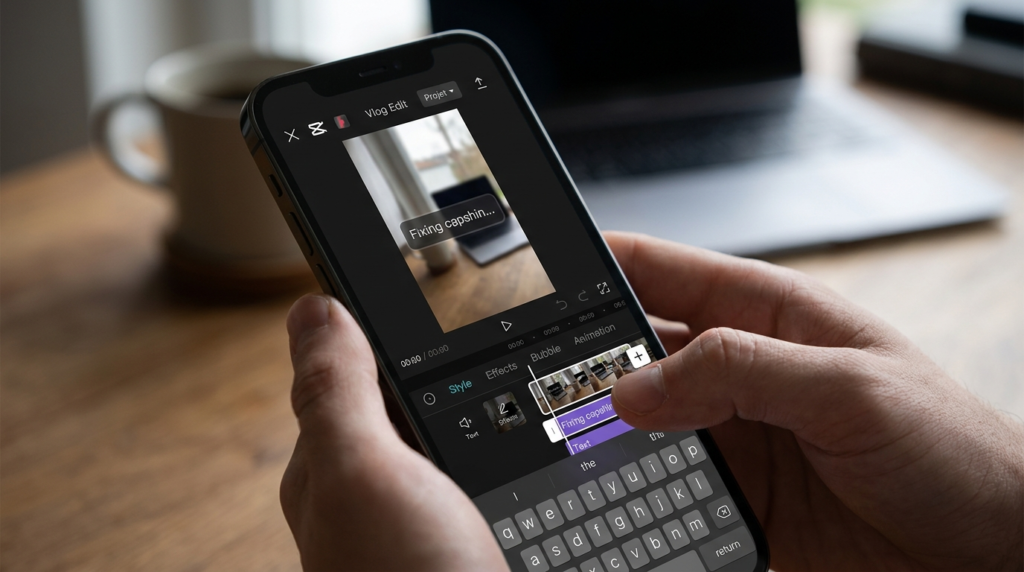
Before we fix it, let’s understand what’s happening.
When CapCut captions disappear, it typically falls into one of these categories:
-
Captions visible in timeline but not in preview
-
Captions visible in preview but missing after export
-
Auto captions not generating at all
-
Text layer accidentally hidden
-
Font or style rendering bug
-
Aspect ratio cropping the text
-
CapCut app glitch or outdated version
Each issue has a different solution. So let’s go step by step.
Check If the Caption Layer Is Hidden
This is the most common reason.
Sometimes captions are there — just hidden.
How to Fix:
-
Open your CapCut project.
-
Go to the Text or Captions layer.
-
Look for the eye icon (visibility toggle).
-
Make sure it’s turned ON.
-
Scrub the timeline to confirm visibility.
If the eye icon is off, the caption won’t show in preview or export.
Tiny switch. Big problem.
Make Sure the Caption Is Inside the Frame
If your captions are placed too low or too high, they might be outside the visible safe zone — especially when exporting for TikTok or Instagram Reels.
Fix It Like This:
-
Tap the caption.
-
Drag it upward into the visible area.
-
Keep it inside the center 80% of the screen.
-
Preview in full-screen mode.
Pro tip: Different platforms crop differently. What shows in CapCut may get cut off in TikTok.
Check Timeline Position (It Might Be Out of Sync)
If your caption timing doesn’t match the video clip, it won’t show during playback.
Fix:
-
Zoom into your timeline.
-
Look at the caption layer.
-
Make sure it aligns with the video clip.
-
Extend the caption duration if needed.
Sometimes the caption is just 0.2 seconds long. Easy to miss.
Auto Captions Not Showing? Regenerate Them
If you’re using CapCut’s Auto Captions feature and nothing appears:
Try This:
-
Go to Text → Auto Captions
-
Select correct language.
-
Make sure your audio track is active.
-
Tap Generate again.
-
Wait until processing completes.
If your video has low volume or background noise, CapCut may fail to detect speech.
Check Audio Track Visibility
Auto captions rely on audio detection.
If your audio track is muted or deleted:
-
Captions will not generate
-
Existing captions may disappear
Fix:
-
Confirm audio track is present.
-
Increase volume above 100%.
-
Avoid background noise interference.
No audio = no captions.
Font Rendering Glitch (Very Common)
Sometimes the text is there — but the font didn’t load properly.
This happens when:
-
You use custom fonts
-
You downloaded fonts externally
-
Internet connection drops
Fix:
-
Tap the caption.
-
Change font to a default CapCut font.
-
Preview again.
-
Re-export.
If the caption suddenly appears — it was a font issue.
Clear CapCut Cache (Mobile Users)
CapCut glitches often come from cache overload.
How to Clear Cache:
On Android:
Settings → Apps → CapCut → Storage → Clear Cache
On iPhone:
Delete the app and reinstall (iOS doesn’t allow manual cache clearing)
Then reopen your project.
This fixes many “CapCut caption not showing” issues instantly.
Update CapCut to Latest Version
Older versions contain bugs.
Go to:
-
App Store (iPhone)
-
Google Play (Android)
-
Official Website (Desktop)
Update to the latest version.
Many caption display issues are fixed in newer patches.
Captions Not Showing After Export?
If captions show in preview but disappear after exporting, it’s likely:
-
Export glitch
-
Overlay layer disabled
-
Rendering failure
-
Wrong export resolution
Fix:
-
Reopen project.
-
Duplicate it.
-
Export in 1080p.
-
Avoid 4K if your device is low-storage.
-
Turn off HDR export if enabled.
Sometimes rendering in lower resolution fixes everything.
Check Aspect Ratio Settings
If you switched between 9:16, 16:9, and 1:1 — your captions may move off screen.
Fix:
-
Go to Canvas settings.
-
Confirm correct ratio for platform.
-
Reposition captions.
-
Preview in full screen.
Always adjust captions AFTER finalizing aspect ratio.
Overlay Conflict Issue
If you have multiple overlays, stickers, or effects — captions may be layered underneath.
Fix:
-
Drag caption layer to top of timeline.
-
Make sure it’s above overlays.
-
Check blend mode settings.
Layer order matters in CapCut.
Try Duplicating the Caption
Sometimes captions bug individually.
Fix:
-
Copy the caption.
-
Delete original.
-
Paste duplicate.
-
Test preview.
If duplicate works — original was corrupted.
Reopen the Project
Yes, sometimes it’s that simple.
-
Close CapCut completely.
-
Restart phone or PC.
-
Reopen project.
Tech can be dramatic sometimes.
Desktop vs Mobile Differences
If you started on desktop and switched to mobile (or vice versa), compatibility issues can cause caption disappearance.
Solution:
-
Finish project on one device.
-
Avoid cross-editing large projects.
Storage Issues Can Affect Rendering
Low storage space can cause captions not to render during export.
Make sure you have:
-
At least 2–3 GB free space
-
Stable internet (for auto captions)
-
No background apps consuming RAM
Check Language Settings for Auto Captions
If you selected wrong language:
CapCut won’t detect speech properly.
Always:
-
Select correct accent/language
-
Avoid mixed-language clips
-
Clean audio before generating captions
Reset Text Style Settings
Sometimes styling effects like shadow, stroke, or opacity are set to zero.
Check:
-
Opacity (should be 100%)
-
Shadow color (not same as background)
-
Stroke width
-
Text size
You’d be surprised how often opacity is accidentally lowered.
Try Exporting Without Effects
Heavy effects can interfere with caption rendering.
Test export:
-
Turn off filters
-
Disable animations
-
Export basic version
If captions show — effects caused conflict.
Reinstall CapCut (Last Resort)
If nothing works:
-
Save your project to cloud.
-
Uninstall CapCut.
-
Reinstall.
-
Reopen project.
This resolves deep software corruption.
When to Contact CapCut Support
If captions still won’t show:
-
Record screen
-
Screenshot timeline
-
Note device model
-
Report inside app
Sometimes it’s a server-side bug.
CapCut Caption Not Showing – Quick Fix Checklist
Here’s your rapid solution summary:
✔ Check visibility icon
✔ Reposition caption inside frame
✔ Confirm timeline duration
✔ Regenerate auto captions
✔ Update app
✔ Clear cache
✔ Check export settings
✔ Fix aspect ratio
✔ Move caption above overlays
✔ Ensure sufficient storage
Save this checklist. It solves 95% of cases.
FAQ – How to Fix CapCut Caption Not Showing
Why are my captions not showing in CapCut preview?
Most likely the text layer is hidden, opacity is low, or captions are outside the visible frame.
Why do captions disappear after export?
Export glitches, overlay conflicts, or resolution issues can cause captions to not render properly.
Why is Auto Caption not working in CapCut?
Audio may be muted, unclear, or wrong language selected.
How do I fix CapCut text glitch?
Update the app, clear cache, or change font style.
Why is my text invisible but selectable?
Opacity might be at zero or font color matches background.
Do captions move when changing aspect ratio?
Yes. Always reposition captions after changing canvas size.
Does low storage affect captions?
Yes. Rendering failures often happen with low memory.
Is this a CapCut bug?
Sometimes. Updating usually fixes it.
Can I recover deleted captions?
If project wasn’t saved — no. If saved — check project history.
Why do captions disappear when adding effects?
Layer conflicts can hide captions underneath overlays.
Final Thoughts: Don’t Panic — It’s Fixable
If you’ve been stressed wondering how to fix CapCut caption not showing, take a breath.
It’s almost never permanent.
In most cases, it’s a simple visibility toggle, positioning issue, export setting, or app glitch.
CapCut is powerful — but like all editing software, it has its dramatic moments.
Now you have a complete troubleshooting roadmap.
So next time your captions vanish mid-edit, you won’t panic.
You’ll fix it in minutes. 💻✨
And if this guide helped you, save it for later — because editing chaos always happens at 2AM before posting.

A creative caption writer from California who specializes in romantic and lifestyle Instagram captions.