
Go to Settings > Accessibility > Subtitles and Captioning, then turn on Closed Captions + SDH.
You can also enable subtitles directly while watching a show by swiping down on your Apple TV remote and selecting the Subtitles option.
From there, choose your preferred language or caption style.
That’s the short version.
But if you want to customize fonts, fix captions that aren’t showing, adjust size or background, or turn subtitles on automatically across apps — keep reading.
I’m breaking down everything in the simplest, most stress-free way possible so you can enjoy your shows without squinting, guessing dialogue, or rewinding every five minutes.
Let’s make your binge-watch nights smoother and way more comfortable. 🍿✨
Why You Might Need Captions on Apple TV (And Why It’s Totally Okay)

Before we dive deep into how to get captions on Apple TV, let’s talk about why this matters.
Closed captions and subtitles aren’t just for accessibility (though they’re incredibly important for that). They’re also perfect if:
-
You’re watching late at night and don’t want to wake anyone up
-
The dialogue is fast or in a heavy accent
-
You’re learning a new language
-
The background music is drowning out voices
-
You simply prefer reading along
Honestly? A lot of us turn captions on because it makes everything clearer and easier to follow. Zero shame. Zero drama. Just smarter streaming.
What’s the Difference Between Subtitles and Closed Captions on Apple TV?

When learning how to get captions on Apple TV, you’ll see terms like:
-
Subtitles
-
Closed Captions (CC)
-
SDH (Subtitles for the Deaf and Hard of Hearing)
Here’s what they mean:
Subtitles show spoken dialogue only.
Closed Captions (CC) include dialogue plus sound effects like [door slams] or [dramatic music].
SDH is similar to CC and is designed for accessibility.
If you want full context (including sound cues), choose Closed Captions + SDH.
How to Get Captions on Apple TV (From Settings Menu)
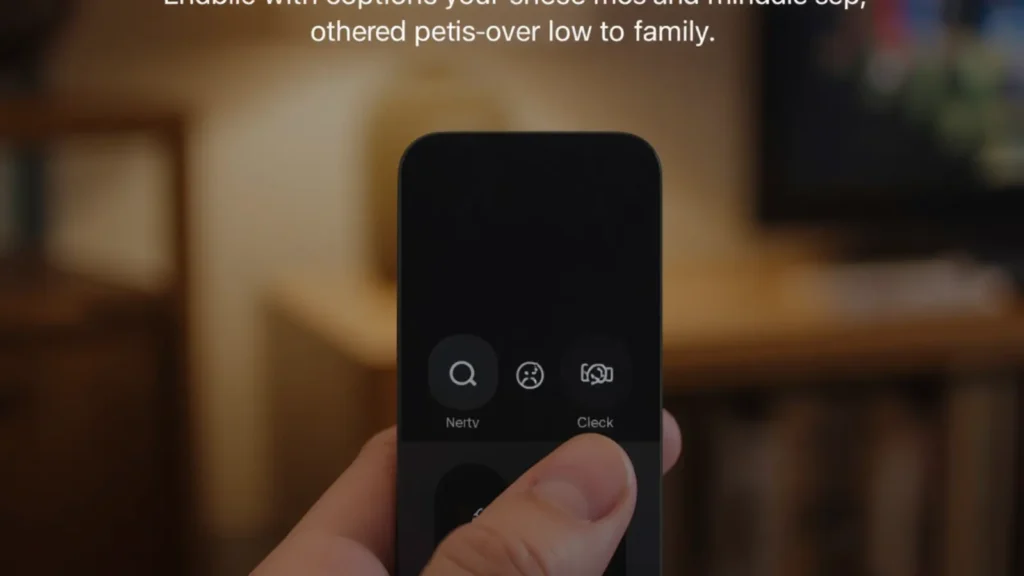
Let’s start with the main system-wide method.
Step-by-Step Guide:
-
Open Settings on your Apple TV.
-
Select Accessibility.
-
Choose Subtitles and Captioning.
-
Turn on Closed Captions + SDH.
-
(Optional) Tap Style to customize appearance.
Boom. Captions are now enabled across supported apps.
This is the best method if you want captions on automatically without turning them on every time you start a show.
How to Turn On Subtitles While Watching a Show
Sometimes you just want captions for one movie, not everything.
Here’s how:
-
Start playing a show.
-
Swipe down on your Apple TV remote (or press the center button, depending on your remote model).
-
Go to the Subtitles tab.
-
Select your preferred language or choose Auto.
That’s it. Easy, fast, no tech headache.
How to Get Captions on Apple TV Using Siri
Yes, you can literally talk to your remote.
Say:
“Turn on subtitles.”
or
“Turn on closed captions.”
Siri will enable them instantly.
This works great if you’re mid-movie and don’t want to pause and navigate menus.
How to Customize Caption Style on Apple TV
Here’s where it gets good.
If the captions are too small, too bright, too bold, or blending into your show, you can change it fix in seconds.
Go to:
Settings > Accessibility > Subtitles and Captioning > Style
You can adjust:
-
Font
-
Text size
-
Text color
-
Background color
-
Opacity
-
Edge style
If your eyes get tired easily, try:
-
Larger font size
-
Semi-transparent background
-
White or yellow text
This makes late-night watching so much easier.
How to Change Subtitle Language on Apple TV
Watching international shows? Obsessed with Korean dramas? Spanish thrillers? French romance? Same.
To change language:
-
Start the show.
-
Swipe down on the remote.
-
Go to Subtitles.
-
Select your preferred language.
If subtitles aren’t available, the content simply may not support that language.
How to Get Captions on Apple TV App (iPhone or iPad)
Using the Apple TV app on iPhone or iPad?
While playing content:
-
Tap the screen.
-
Tap the speech bubble icon.
-
Select your subtitle language.
You can also adjust device-wide captions in:
Settings (iPhone) > Accessibility > Subtitles & Captioning
Why Are Captions Not Showing on Apple TV?
Sometimes captions just refuse to cooperate.
Here’s what might be happening:
1. The App Overrides System Settings
Some apps (like Netflix or Prime Video) use their own subtitle settings.
Check inside the app’s playback menu.
2. The Content Doesn’t Support Captions
Not all content has subtitle options.
3. Software Needs Updating
Go to:
Settings > System > Software Updates
Make sure you’re running the latest version.
4. You Selected the Wrong Language
Double-check you didn’t select “Off” accidentally.
How to Fix Apple TV Subtitles Out of Sync
If captions appear too early or too late:
-
Restart your Apple TV.
-
Check your TV audio delay settings.
-
Try switching subtitle language and switching back.
Usually, a quick restart fixes sync issues.
How to Turn Off Captions on Apple TV
Don’t need them anymore?
While watching:
-
Swipe down.
-
Go to Subtitles.
-
Select Off.
Or turn off Closed Captions + SDH in Accessibility settings.
How to Get Captions on Apple TV for Netflix
Netflix has its own system.
While playing:
-
Press down on the remote.
-
Select the Audio & Subtitles menu.
-
Choose your subtitle language.
Netflix also lets you customize subtitle style in your Netflix account settings via web browser.
How to Get Captions on Apple TV for Prime Video
Prime Video works similarly:
-
Start the show.
-
Swipe down.
-
Select Subtitles.
-
Choose your language.
You can also customize subtitle appearance in Amazon settings.
How to Get Captions on Apple TV for Disney+
Disney+ supports subtitles in multiple languages.
While playing:
-
Swipe down.
-
Choose Subtitles.
-
Pick your preferred option.
Disney+ also allows style adjustments.
Best Caption Settings for Comfortable Viewing
If you binge-watch like it’s a personality trait (no judgment), here are cozy settings:
-
Text size: Medium or Large
-
Color: White or Soft Yellow
-
Background: Semi-transparent black
-
Edge style: Drop shadow
This prevents eye strain and keeps everything readable.
Are Closed Captions the Same as Subtitles on Apple TV?
Not exactly.
Subtitles = dialogue only.
Closed Captions = dialogue + sound effects.
If accessibility matters to you, choose Closed Captions + SDH.
Can You Set Captions to Always On?
Yes.
Turn on:
Settings > Accessibility > Closed Captions + SDH
This enables captions automatically across supported apps.
How to Get Captions on Apple TV Using Different Remote Models
Siri Remote (Newer Models)
Swipe down during playback.
Older Aluminum Remote
Press and hold center button to access subtitle menu.
How to Adjust Caption Transparency on Apple TV
If captions block too much of the screen:
-
Go to Settings > Accessibility > Subtitles and Captioning > Style.
-
Adjust background opacity.
Lower opacity = more subtle background.
How to Enable Live Captions on Apple TV
Some newer Apple ecosystem devices support live captions, but Apple TV mainly relies on app-based captions.
Make sure your tvOS is updated for best compatibility.
Do Captions Work Across All Streaming Apps?
Most major apps support captions:
-
Netflix
-
Prime Video
-
Disney+
-
Apple TV+
-
Hulu
But each app may have its own subtitle settings.
Is It Better to Use Subtitles or Closed Captions?
If you want full context (music cues, sound effects, tone indicators), choose Closed Captions.
If you only care about dialogue, regular subtitles are fine.
How to Get Captions on Apple TV Without Changing System Settings
If you don’t want captions always on:
Just enable them per show during playback.
That way they won’t appear in other apps.
Quick Troubleshooting Checklist
If captions aren’t working:
✔ Restart Apple TV
✔ Update tvOS
✔ Check app settings
✔ Confirm content supports subtitles
✔ Toggle captions off and back on
Most issues fix within minutes.
Frequently Asked Questions (FAQ)
1. How do I turn on subtitles on Apple TV?
Go to Settings > Accessibility > Subtitles and Captioning, or enable them during playback by swiping down and selecting Subtitles.
2. Why can’t I see captions on my Apple TV?
The content may not support subtitles, or the app may override system settings.
3. How do I change subtitle language on Apple TV?
Swipe down during playback and choose your preferred language under Subtitles.
4. How do I make subtitles bigger on Apple TV?
Go to Settings > Accessibility > Subtitles and Captioning > Style and adjust text size.
5. Are captions available on all apps?
Most major streaming apps support captions, but availability depends on the content.
6. How do I turn captions off?
Swipe down during playback and select Off under Subtitles.
7. What does SDH mean on Apple TV?
SDH stands for Subtitles for the Deaf and Hard of Hearing.
8. Can I customize subtitle color?
Yes, under Accessibility > Subtitles and Captioning > Style.
Final Thoughts: Streaming Should Feel Easy
Now you fully know how to get captions on Apple TV — from turning them on system-wide to customizing style, fixing sync issues, and adjusting language settings.
Captions aren’t just a setting.
They’re comfort.
They’re clarity.
They’re control over your viewing experience.
Whether you’re watching a romantic movie, an intense thriller, or re-bingeing your comfort show for the fifth time — captions make everything smoother.
If this guide helped you, save it for later or share it with someone who’s constantly asking, “Wait, what did they just say?” 🍿✨
Happy streaming.

A digital writer who crafts motivational and success-driven captions for entrepreneurs.