

Roku closed captioning is a built-in accessibility feature that displays on-screen text for spoken dialogue, sound effects, and background audio while streaming movies, shows, and live TV on Roku devices.
It helps viewers who are deaf or hard of hearing, supports language learners, improves clarity in noisy environments, and enhances overall viewing comprehension.
You can easily turn Roku closed captioning on or off, customize subtitle styles, and adjust display settings directly from your Roku settings menu.
But let’s be honest… captions aren’t just “settings.” They’re comfort. They’re clarity. They’re connection. 💫
Whether you’re binge-watching your favorite romantic series, decoding fast-paced action scenes, or watching quietly while your partner naps beside you, this guide will walk you through everything you need to know about Roku closed captioning — step-by-step, beautifully explained, and emotionally relatable.
Why Roku Closed Captioning Matters More Than You Think 💬
Closed captioning isn’t just a technical feature.
It’s:
-
Inclusion
-
Accessibility
-
Comfort
-
Focus
-
Emotional clarity
For many viewers, Roku closed captioning creates deeper understanding of dialogue, tone, and even subtle emotional cues. You catch whispers. You notice pauses. You feel the story more.
It supports:
-
Viewers who are deaf or hard of hearing
-
Non-native English speakers
-
Late-night binge watchers
-
Parents watching with sleeping babies
-
Anyone who loves clarity
Captions turn watching into understanding.
How to Turn On Roku Closed Captioning (Step-by-Step Guide) 🎬
Enabling Roku closed captioning is quick and simple:
-
Press the Home button on your Roku remote.
-
Go to Settings.
-
Select Accessibility.
-
Choose Captions Mode.
- Select:
-
Off
-
On Always
-
On Replay
-
Off
That’s it. 💕
“On Replay” is a hidden gem. It shows captions only when you press the replay button — perfect for catching missed dialogue without cluttering your screen.
Save this section for later if you’re setting up a new Roku device.
How to Customize Roku Closed Captioning Style ✨

Let’s make it pretty — and readable.
To customize:
-
Go to Settings
-
Select Accessibility
-
Choose Caption Style
You can adjust:
-
Text color
-
Text size
-
Background color
-
Background opacity
-
Edge style
-
Font type
If you love soft aesthetics, try:
-
White text
-
Semi-transparent black background
-
Medium font size
It’s clean, romantic, and easy on the eyes.
Your captions should feel like part of the story, not a distraction.
Roku Closed Captioning vs Subtitles: What’s the Difference? 🤍

Many people use these terms interchangeably — but they’re slightly different.
Closed Captioning (CC):
-
Includes dialogue
-
Includes sound effects
-
Describes background sounds
-
Designed for accessibility
Subtitles:
-
Focus on dialogue only
-
Often used for language translation
Roku closed captioning is more comprehensive and inclusive.
Roku Closed Captioning for Netflix, Hulu & Prime Video 📺
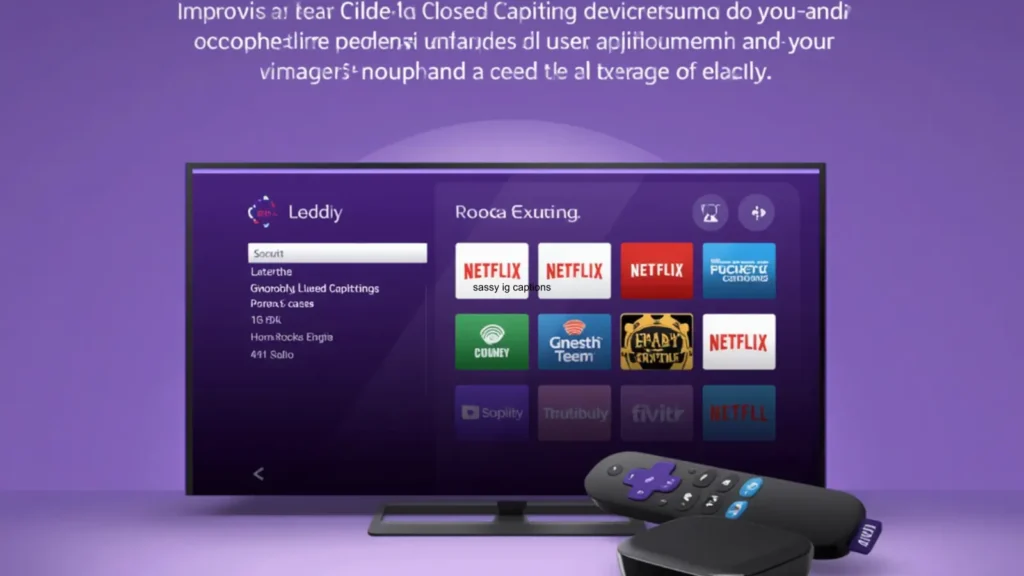
Most streaming apps respect Roku’s global caption settings. However, some apps have their own internal subtitle controls.
If captions don’t appear:
-
Pause the show
-
Open the audio/subtitle settings inside the app
-
Select your preferred language or caption option
Netflix, Hulu, Disney+, and Prime Video all support closed captioning.
Tip: Always check both Roku system settings and the streaming app settings if captions aren’t showing.
How to Turn Off Roku Closed Captioning 🙈
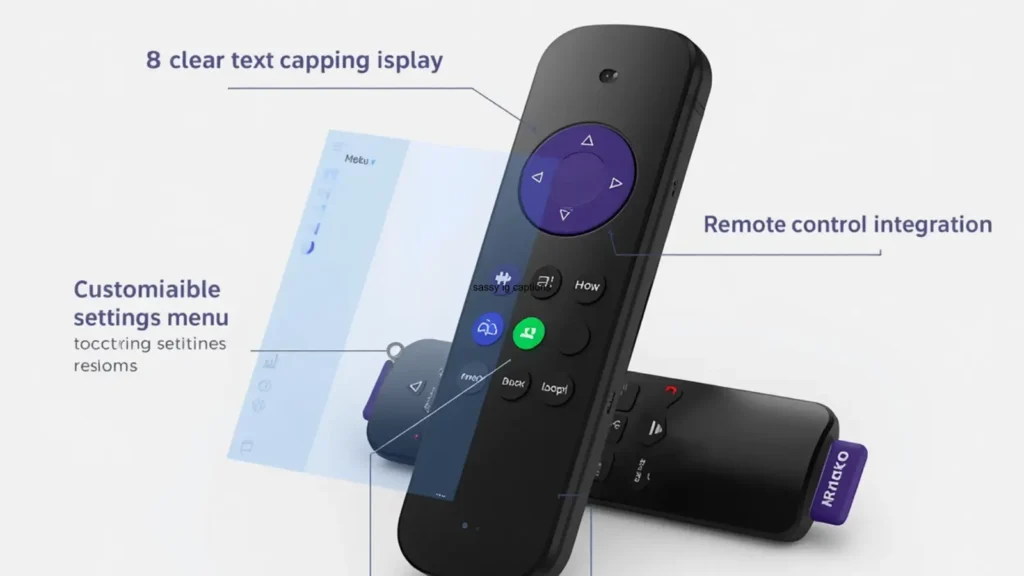
If captions are stuck on:
-
Press Home
-
Go to Settings
-
Select Accessibility
-
Choose Captions Mode
-
Select Off
Still showing? Check the streaming app’s internal settings.
Sometimes apps override system preferences.
Roku Closed Captioning Not Working? (Quick Fix Guide) 🛠️
If Roku closed captioning isn’t working:
-
Restart your Roku device
-
Check internet connection
-
Update system software
-
Confirm captions are available for that content
-
Reset accessibility settings
Some older shows may not include caption files.
If all else fails:
Settings → System → System Restart.
Simple reset. Deep breath. Try again. 💗
How Roku Closed Captioning Improves Emotional Connection 🎭
Captions help you notice:
-
Tone shifts
-
Whispered secrets
-
Emotional pauses
-
Music cues
-
Background sounds
When a character whispers “I love you”… captions make sure you don’t miss it.
They increase emotional immersion.
In relationships too, clarity matters. Understanding builds intimacy. Whether it’s on-screen or in real life.
Tag someone who always watches with captions ❤️
Best Roku Closed Captioning Settings for Different Situations 🎧
Late Night Watching
-
Small text
-
Dark background
-
On Replay mode
Learning English
-
Medium font
-
Always On
-
Clear white text
Watching in Noisy Rooms
-
Always On
-
High contrast colors
Minimalist Aesthetic
-
Transparent background
-
Clean font
-
Soft white text
Save this if you switch settings often.
Accessibility & Inclusion: Why Closed Captioning Matters 💜
Closed captioning is not optional luxury.
It’s accessibility.
Roku closed captioning supports:
-
Equal media access
-
Inclusive streaming
-
Better comprehension
-
Independent viewing
Technology should include everyone.
Always.
Hidden Roku Caption Features You Might Not Know 👀
-
Replay button triggers temporary captions
-
Some Roku remotes have voice commands for accessibility
-
You can reset caption styling to default
-
Caption changes apply across supported apps
Little features. Big impact.
How to Update Roku Software for Caption Fixes 🔄
To check for updates:
-
Home
-
Settings
-
System
-
System Update
-
Check Now
Updated software often fixes caption glitches.
Don’t skip updates.
Roku Closed Captioning on Live TV 📡
If using:
-
Roku TV antenna input
-
Cable through Roku interface
-
Streaming live TV apps
Caption availability depends on broadcast signal.
Enable captions through both:
-
Roku Accessibility Settings
-
Live TV app settings
Live broadcasts may have slight delays.
Caption Language Options on Roku 🌍
Roku closed captioning supports multiple languages depending on the content provider.
To change:
-
Pause video
-
Open subtitle settings
-
Choose language
Perfect for:
-
Bilingual families
-
Language learners
-
International content lovers
Troubleshooting Caption Sync Issues ⏱️
If captions are out of sync:
-
Restart app
-
Restart Roku
-
Check streaming quality
-
Switch internet connection
-
Update device
If problem persists, it may be content-specific.
Best Roku Devices for Closed Captioning Experience 📺
All Roku models support captions, but newer devices offer:
-
Faster processing
-
Better accessibility menus
-
Improved voice control
-
Enhanced UI responsiveness
If captions lag often, upgrading may help.
How Closed Captioning Boosts Learning & Retention 📚
Studies show reading while listening improves:
-
Vocabulary retention
-
Comprehension
-
Memory recall
-
Pronunciation
Captions are powerful learning tools.
Especially for kids.
Especially for second-language learners.
Especially for focused minds.
Common Roku Closed Captioning Mistakes to Avoid ❌
-
Forgetting app-specific subtitle settings
-
Using low-contrast colors
-
Leaving captions on accidentally
-
Not updating software
-
Confusing subtitles with CC
Small oversights. Easy fixes.
How to Reset Roku Caption Settings 🔧
If styling looks strange:
-
Settings
-
Accessibility
-
Caption Style
-
Reset to Default
Start fresh.
Engagement Tips for Sharing Accessibility Awareness 💌
Want to support inclusion?
-
Share caption awareness posts
-
Encourage friends to enable CC
-
Educate others about accessibility
Captioning supports emotional connection.
And connection is everything.
FAQ: Roku Closed Captioning (Featured Snippet Optimized)
1. How do I turn on Roku closed captioning?
Go to Home → Settings → Accessibility → Captions Mode → Select “On Always.”
2. Why are captions not showing on Roku?
Check both Roku Accessibility settings and the streaming app subtitle settings.
3. What does “On Replay” mean?
Captions appear temporarily when pressing the replay button.
4. Can I change caption font on Roku?
Yes. Go to Settings → Accessibility → Caption Style.
5. Do all Roku apps support closed captioning?
Most major streaming services do, but availability depends on the content.
6. Why are captions out of sync?
It may be an app or streaming issue. Restart the app or device.
7. Is closed captioning the same as subtitles?
No. Closed captioning includes sound effects; subtitles usually include dialogue only.
8. Can I turn captions off completely?
Yes. Set Captions Mode to “Off.”
Emotional Conclusion: Why Roku Closed Captioning Is More Than a Setting 💖
Roku closed captioning isn’t just about text on a screen.
It’s about clarity.
It’s about accessibility.
It’s about inclusion.
It’s about not missing the quiet “I love you.”
It’s about connection.
Whether you watch with captions every night or just sometimes, this simple feature creates deeper understanding — and deeper experiences.
If this guide helped you, save it for later and share it with someone who needs it. 💕
A lifestyle blogger creating cute, trendy, and relatable captions for everyday posts.