
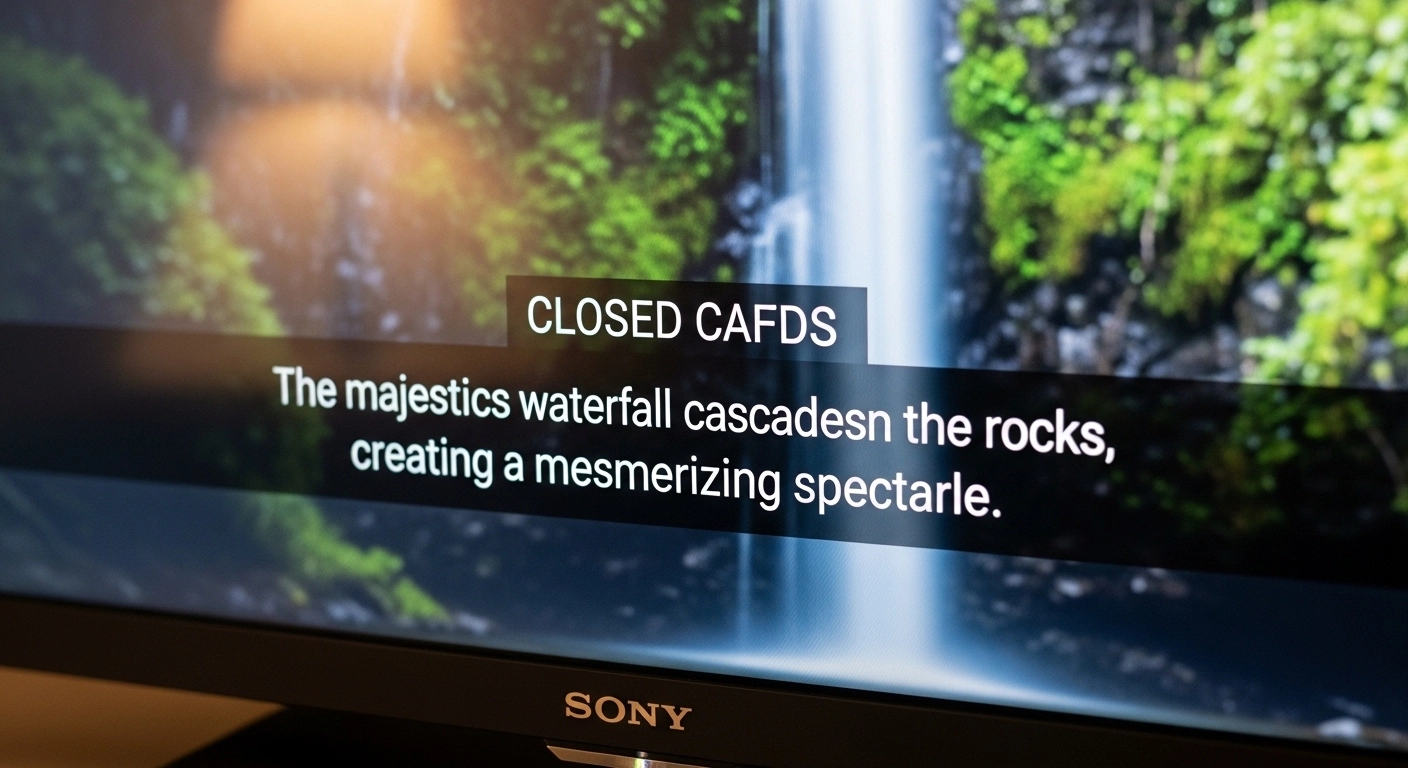
If you’re searching for Sony KD55X75K closed caption settings, here’s the quick answer:
Closed captions on the Sony KD55X75K are accessibility subtitles that display dialogue and sound cues on screen.
You can turn them on or off through Settings > Channels & Inputs > Channel Setup > Digital Setup > Subtitle Setup or directly from streaming apps like Netflix, YouTube, and Prime Video.
You can also customize text size, color, background, and language for better readability.
Now let’s walk through everything—step by step—so your TV feels tailored, comfortable, and totally yours. 💕
What Is Sony KD55X75K Closed Caption?
Sony KD55X75K closed caption refers to the subtitle feature built into Sony’s 55-inch X75K 4K Google TV. Closed captions display:
-
Spoken dialogue
-
Background sound effects (like [door creaks] or [music playing])
-
Speaker identification
-
Audio cues for accessibility
Unlike regular subtitles, closed captions are designed for hearing accessibility and clarity in noisy environments.
They’re perfect for:
-
Watching late at night without waking anyone 🌙
-
Understanding heavy accents
-
Following dialogue in loud rooms
-
Language learning
-
Improving comprehension
Where to Find Sony KD55X75K Closed Caption Settings
Finding the closed caption menu is simple once you know where to look.
Main TV Settings Path
-
Press Home on your remote
-
Go to Settings (⚙️ icon)
-
Select Channels & Inputs
-
Choose Channel Setup
-
Open Digital Setup
-
Select Subtitle Setup
From here, you can:
-
Turn subtitles ON or OFF
-
Choose subtitle language
-
Adjust display preferences
It’s clean, intuitive, and very user-friendly—Sony really did a good job here.
How to Turn On Closed Caption on Sony KD55X75K
Here’s your quick-start method:
-
Press Quick Settings on the remote
-
Look for Captions / Subtitles
-
Toggle to ON
Or use the full settings menu if you want deeper customization.
✨ Pro Tip: Some remotes have a direct “CC” button depending on region.
How to Turn Off Closed Caption on Sony KD55X75K
To disable:
-
Go back to Subtitle Setup
-
Toggle captions OFF
-
Or disable subtitles inside the streaming app you’re using
If captions won’t turn off, it’s usually because:
-
The app has its own subtitle settings
-
Accessibility settings are overriding defaults
We’ll fix that next.
Why Closed Caption May Not Be Working
If your Sony KD55X75K closed caption isn’t appearing:
✔ Check that the broadcast channel supports subtitles
✔ Make sure subtitles are enabled in the app
✔ Confirm correct language selection
✔ Restart the TV
✔ Update system software
Streaming platforms override system settings, so always check both places.
Closed Caption Settings for Netflix on Sony KD55X75K
Netflix has its own subtitle controls.
-
Play any show
-
Press Down on remote
-
Select Audio & Subtitles
-
Choose your subtitle language
Netflix also allows:
-
Font size changes
-
Text color
-
Background customization
You can adjust these from your Netflix account online.
Closed Caption Settings for YouTube
YouTube is slightly different.
-
Open a video
-
Press Up
-
Select CC icon
-
Turn captions ON
If auto-generated captions appear:
-
Go to Settings ⚙️ inside the video
-
Adjust language preference
How to Customize Caption Appearance
This is where it gets personal. 💖
Sony allows you to change:
-
Text size
-
Text color
-
Background opacity
-
Font style
-
Edge type
Go to:
Settings > Accessibility > Caption Preferences
Make captions:
-
Bigger for better readability
-
High contrast for easier viewing
-
Minimal for aesthetic viewing
You deserve captions that feel comfortable—not distracting.
Best Caption Size for Comfortable Viewing
For most people:
-
Medium size works best
-
White text + black background = highest clarity
-
Semi-transparent background reduces screen clutter
If you sit farther from the screen, increase font size.
Accessibility Features Beyond Closed Caption
Sony KD55X75K includes:
-
Screen reader
-
Voice control (Google Assistant)
-
High contrast modes
-
Audio description
These features create a more inclusive viewing experience.
Language Settings for Subtitles
To change subtitle language:
-
Open Subtitle Setup
-
Select Language
-
Choose from available options
Streaming platforms often offer:
-
English
-
Spanish
-
French
-
Auto-translate options
Perfect for multilingual households.
Troubleshooting Sony KD55X75K Closed Caption Issues
If captions lag or glitch:
-
Restart TV
-
Clear app cache
-
Check internet speed
-
Update firmware
Still not working? Factory reset may help—but only as a last resort.
Closed Caption vs Subtitles: What’s the Difference?
Closed Captions (CC):
-
Include sound effects
-
Designed for accessibility
Subtitles:
-
Dialogue only
-
Used for translation
Both can be enabled on Sony KD55X75K.
Using Voice Commands for Subtitles
If you have Google Assistant enabled:
Say:
-
“Turn on subtitles”
-
“Enable captions”
-
“Turn off captions”
It’s hands-free and convenient.
Software Updates & Caption Performance
To update:
-
Go to Settings
-
Select System
-
Choose About
-
Click System Update
Keeping software updated prevents subtitle sync issues.
Closed Caption for HDMI Devices
If you’re using:
-
Cable box
-
Fire Stick
-
PlayStation
-
Blu-ray player
You must enable captions within that device’s settings, not just the TV.
Each HDMI source controls its own subtitles.
Resetting Caption Settings to Default
To reset:
-
Go to Accessibility
-
Select Caption Preferences
-
Choose Reset to Default
Helpful if customization gets messy.
Watching in Noisy Environments
Closed captions are amazing for:
-
Kids running around 👶
-
Cooking sounds in the kitchen 🍳
-
Gym workouts 🏋️
-
Outdoor patios
You won’t miss a single word.
Closed Caption for Hearing Accessibility
Captions are essential for:
-
Partial hearing loss
-
Auditory processing issues
-
Elderly viewers
Sony’s adjustable caption styling makes it accessible and comfortable.
How to Make Captions Less Distracting
If captions feel overwhelming:
-
Reduce text size
-
Remove background box
-
Lower opacity
-
Use softer font
Balance clarity with aesthetic.
Sony KD55X75K Closed Caption for Gaming
For gamers 🎮
-
Enable subtitles inside the game settings
-
Use TV caption settings only for streaming apps
Many games offer deeper subtitle customization.
When to Contact Sony Support
Reach out if:
-
Captions won’t enable at all
-
Text appears corrupted
-
Language won’t change
Check warranty before calling.
Frequently Asked Questions (FAQ)
1. How do I turn on closed caption on Sony KD55X75K?
Go to Settings > Channels & Inputs > Subtitle Setup and toggle ON.
2. Why are captions not showing?
The app or broadcast may not support subtitles. Check both TV and app settings.
3. Can I change subtitle font size?
Yes. Go to Accessibility > Caption Preferences.
4. Does Sony KD55X75K support multiple languages?
Yes, depending on broadcast or app availability.
5. Can I use voice commands to enable captions?
Yes, via Google Assistant.
6. Why won’t captions turn off?
Disable them in both TV and streaming app settings.
7. Do HDMI devices control their own captions?
Yes, captions must be enabled inside each connected device.
8. What’s the difference between subtitles and closed captions?
Closed captions include sound cues; subtitles show dialogue only.
Common Mistakes to Avoid
❌ Only enabling captions in TV settings but not apps
❌ Forgetting to update software
❌ Assuming all channels support subtitles
❌ Not checking HDMI device settings
Final Thoughts on Sony KD55X75K Closed Caption
The Sony KD55X75K closed caption feature is more than just text on a screen—it’s about clarity, accessibility, comfort, and inclusivity.
Whether you’re watching your favorite Netflix romance, catching late-night news quietly, or helping a loved one follow dialogue more easily, subtitles transform the experience.
Take a few minutes to personalize your caption settings. Adjust the font. Choose your language.
Make it feel right.
Because TV should feel effortless. 💕
If this guide helped you, bookmark it for later and share it with someone who needs it.

A New York-based content creator known for witty, short, and viral social media captions.