
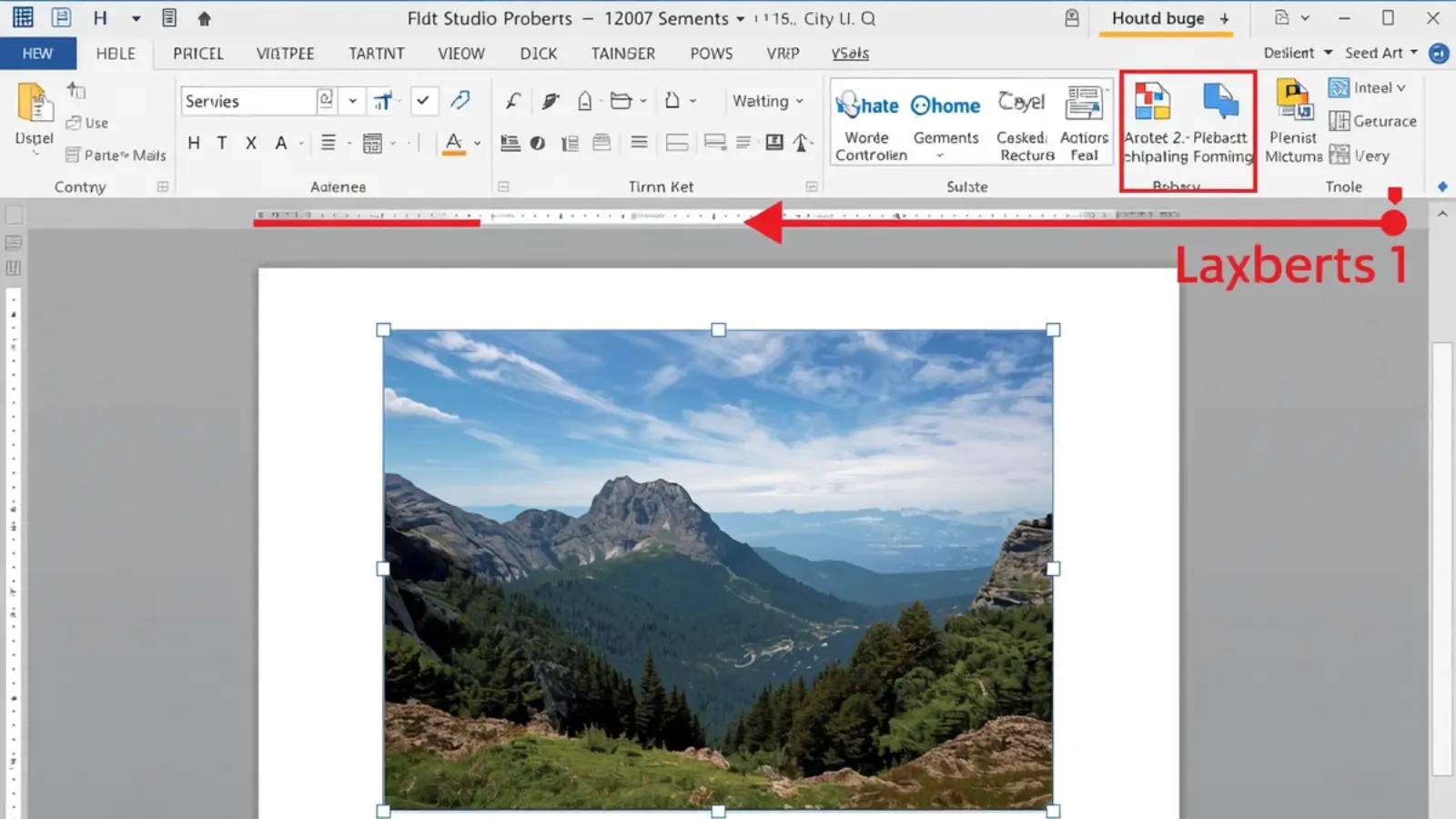
If you’re wondering how to add a caption to an image in Word, here’s the quick answer:
In Microsoft Word, select your image → go to the References tab → click Insert Caption → choose a label (like Figure) → type your caption → click OK.
Word will automatically number your images and allow you to create a table of figures.
Simple, right? ✨
But if you want your document to look polished, professional, organized, and ready for reports, assignments, research papers, or even your dreamy wedding planner PDF — you need more than just the basics.
In this complete guide, I’ll walk you through how to add a caption to an image in Word, customize it, format it beautifully, troubleshoot issues, and make your document look chef’s kiss perfect 💋
Save this for later — you’re about to become a Word formatting queen 👑
Why Adding Captions in Word Actually Matters
Before we dive into the step-by-step tutorial, let’s talk about why captions are important.
Captions help you:
-
Keep images automatically numbered
-
Cross-reference images in your text
-
Create a Table of Figures
-
Improve document clarity
-
Make academic papers look professional
-
Meet formatting requirements (APA, MLA, Chicago, etc.)
-
Improve accessibility
-
Keep your content structured and searchable
If you’re writing a thesis, business report, ebook, proposal, or blog draft in Word — captions aren’t optional. They’re essential.
How to Add a Caption to an Image in Word (Step-by-Step)
Let’s walk through the exact process.
Step 1: Insert Your Image
-
Go to Insert
-
Click Pictures
-
Choose your image from your computer
Step 2: Select the Image
Click directly on the image so Word knows what you’re working with.
Step 3: Open the References Tab
At the top ribbon, click References.
Step 4: Click “Insert Caption”
You’ll see the Insert Caption button in the Captions group.
Step 5: Customize Your Caption
A pop-up will appear. Here’s what you can adjust:
-
Label (Figure, Table, Equation)
-
Position (Above or Below the image)
-
Caption text
-
Numbering format
Step 6: Click OK
Boom. Your caption is now attached and automatically numbered 💅
How to Customize Caption Labels in Word
Want something other than “Figure”?
Here’s how to create a custom label:
-
Go to Insert Caption
-
Click New Label
-
Type your custom label (Example: Photo, Screenshot, Chart)
-
Click OK
Now your caption will use your personalized label instead of the default one.
Perfect for:
-
Marketing reports
-
Branding decks
-
Wedding planners
-
Recipe books
-
Social media planning docs
How to Change Caption Number Format
Maybe you need Roman numerals. Or chapter-based numbering. Or something fancy.
Here’s how:
-
Click Insert Caption
-
Click Numbering
- Choose:
-
1, 2, 3
-
i, ii, iii
-
A, B, C
-
1, 2, 3
-
Click OK
You can even include chapter numbers for academic papers.
How to Add Captions to Multiple Images Automatically
If you have 10+ images, don’t manually type numbers. Word will handle it.
Just:
-
Insert caption to each image using the built-in feature.
-
Word auto-increments numbers.
-
If you insert a new image in the middle, right-click and select Update Field to renumber.
Magic ✨
How to Create a Table of Figures in Word
This is where captions really shine.
After adding captions to all images:
-
Place your cursor where you want the table
-
Go to References
-
Click Insert Table of Figures
-
Choose formatting
-
Click OK
Word automatically pulls every caption into a clean list.
Perfect for:
-
Theses
-
Dissertations
-
Technical manuals
-
Corporate reports
How to Cross-Reference a Caption in Word
Want to say “See Figure 3” and have it update automatically?
Do this:
-
Place your cursor where you want the reference
-
Go to References
-
Click Cross-reference
-
Choose “Figure”
-
Select the caption
-
Click Insert
Now if numbers change, your references update too 💖
How to Format Caption Text (Font, Size, Alignment)
By default, Word uses the “Caption” style.
To modify it:
-
Go to Home
-
Open the Styles pane
-
Right-click “Caption”
-
Click Modify
- Adjust:
-
Font
-
Size
-
Color
-
Spacing
-
Alignment
-
Font
Want centered captions under Instagram screenshots? Go for it.
How to Add a Caption Above an Image in Word
When inserting a caption:
-
Choose Position
-
Select “Above selected item”
This is common in:
-
Academic formatting
-
Legal documents
-
Research reports
How to Add a Caption in Word on Mac
The steps are almost identical:
-
Click the image
-
Go to References
-
Click Insert Caption
-
Customize
-
Click OK
Easy, breezy 🍃
How to Add a Caption in Word Online
Word Online has limited features.
Currently:
-
You can manually type captions
-
Automatic caption numbering may not be available in some versions
For full caption functionality, use the desktop version.
How to Fix Captions Not Updating
If numbering looks wrong:
-
Right-click the caption
-
Click Update Field
Or:
-
Press Ctrl + A
-
Press F9
-
Updates all fields in the document
Problem solved 💅
How to Keep Captions Attached to Images
Sometimes captions move awkwardly.
To fix:
-
Right-click the image
-
Select Wrap Text
-
Choose In Line with Text
This keeps your caption stable and structured.
Best Practices for Writing Strong Image Captions
Now let’s elevate things.
A good caption should:
-
Describe what the image shows
-
Add context
-
Be concise
-
Include relevant keywords (for SEO documents)
-
Match formatting style
Example:
❌ Figure 1
✅ Figure 1. Wedding venue decorated with ivory florals and candlelit aisle.
See the difference?
SEO Benefits of Adding Captions in Word Documents
Yes — captions help SEO in exported PDFs.
Why?
-
Search engines read caption text
-
Improves contextual relevance
-
Enhances semantic clarity
-
Boosts accessibility signals
Especially useful for:
-
Whitepapers
-
Downloadable guides
-
Ebooks
-
Case studies
Accessibility: Why Captions Matter for Screen Readers
Captions help assistive technology users understand image content.
Even better:
Add Alt Text too.
To add Alt Text:
-
Right-click image
-
Select Edit Alt Text
-
Write a description
Captions + Alt Text = inclusive content 💖
Common Mistakes to Avoid When Adding Captions
Let’s avoid these:
❌ Manually typing numbers
❌ Not using the References tab
❌ Forgetting to update fields
❌ Mixing caption styles
❌ Placing captions in text boxes
❌ Using inconsistent formatting
Consistency = professional polish.
How to Remove a Caption in Word
If you need to delete:
-
Click the caption text
-
Press Delete
But remember:
You may need to update numbering after removal.
How to Convert a Manual Caption to Automatic
If you typed captions manually:
-
Delete the manual text
-
Reinsert using Insert Caption
It’s worth fixing — automatic numbering saves time long term.
Caption Formatting for APA, MLA, and Chicago Style
APA:
-
Caption above the image
-
Figure number in bold
MLA:
-
Below image
-
“Fig.” abbreviation
Chicago:
-
Flexible placement
-
Consistent numbering
Always check your institution’s style guide.
Troubleshooting: Caption Button Is Greyed Out
This usually happens if:
-
You’re not selecting an image
-
The image is inside a header/footer
-
Document is protected
Fix:
Select the image directly in the body text.
How to Add a Caption to a Screenshot in Word
Same process:
-
Insert screenshot
-
Click it
-
References → Insert Caption
-
Customize
Helpful for:
-
Tutorials
-
Training manuals
-
How-to guides
Pro Tips for Professional Documents
✨ Use consistent formatting
✨ Always update fields before submitting
✨ Use cross-references
✨ Keep captions concise
✨ Include descriptive keywords
Frequently Asked Questions (FAQ)
How do I add a caption to an image in Word?
Select the image → Go to References → Click Insert Caption → Type your caption → Click OK.
Can I change caption numbering?
Yes. Click Insert Caption → Numbering → Choose your format.
How do I create a table of figures?
After adding captions, go to References → Insert Table of Figures.
Why are my captions not updating?
Select all (Ctrl + A) and press F9.
Can I customize caption labels?
Yes. Click New Label in the Insert Caption window.
How do I add captions in Word Online?
Manual captions only; desktop version offers full features.
How do I reference a figure automatically?
Use Cross-reference under the References tab.
Can I style captions differently?
Yes. Modify the “Caption” style in the Styles pane.
Final Thoughts: Mastering How to Add a Caption to an Image in Word
Now you fully understand how to add a caption to an image in Word — not just the basic steps, but the formatting tricks, professional tips, troubleshooting fixes, and advanced features that elevate your document.
Whether you’re creating:
-
A university thesis
-
A corporate report
-
A digital product
-
A wedding planning guide
-
A social media content document
Using Word’s built-in caption tools makes your work organized, searchable, professional, and beautifully structured.
So go ahead — open Word, add that image, click “Insert Caption,” and let your document glow up ✨
If this guide helped you, save it for later and share it with someone working on a report today 💖

A New York-based content creator known for witty, short, and viral social media captions.