
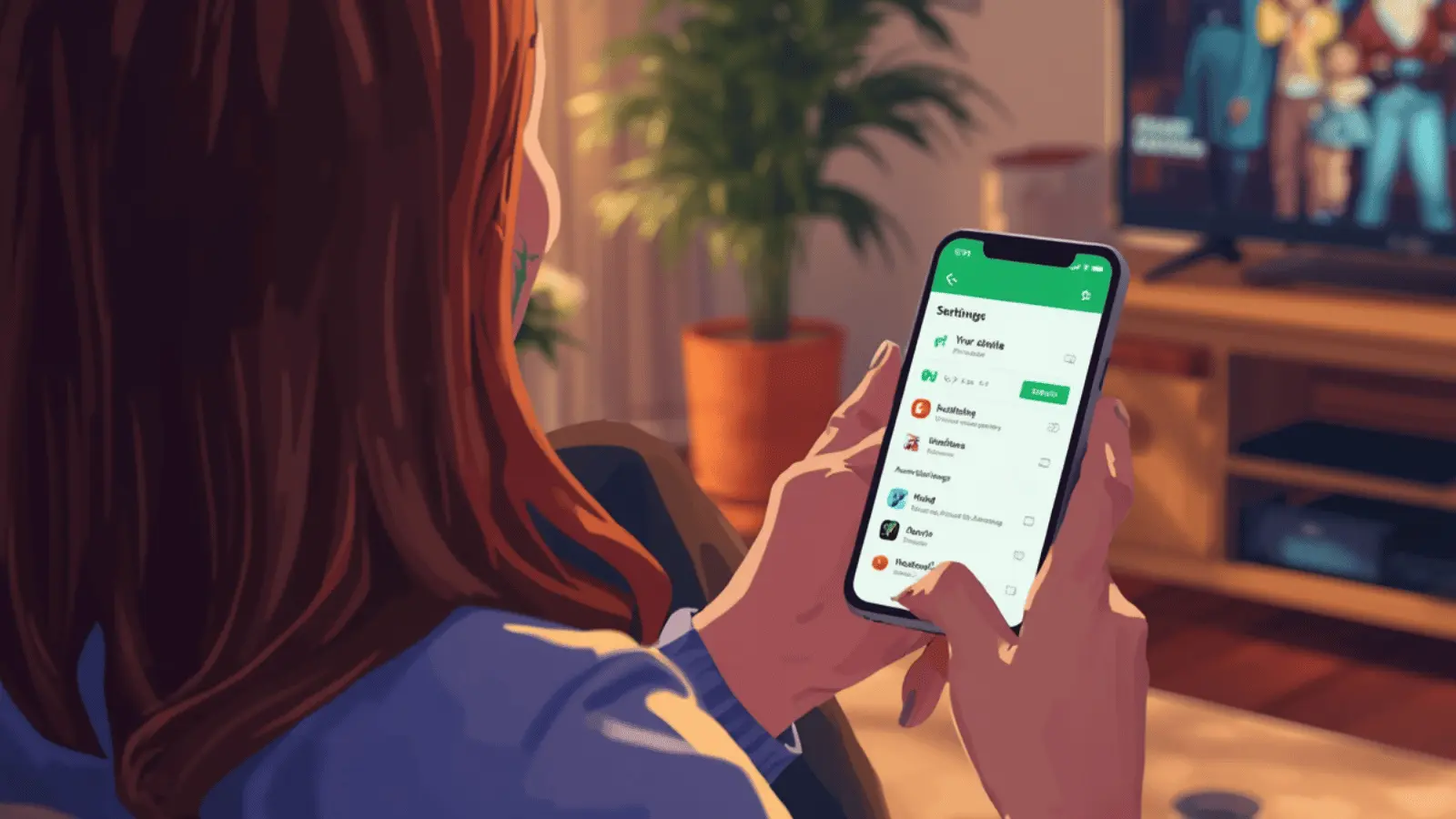
If you’re wondering how to turn off closed caption on Hulu, the quick answer is this:
start playing a video, open the playback settings (usually by tapping the screen or pressing the up/select button on your remote), choose Subtitles & Audio, and set Subtitles to Off.
The exact steps vary slightly depending on whether you’re using a smart TV, Roku, Fire Stick, iPhone, Android, or a web browser—but don’t worry, I’ll walk you through every single one.
Whether captions turned on by accident, won’t turn off, or keep reappearing, this guide will help you fix it fast and get back to binge-watching in peace. 🍿✨
Why Closed Captions Turn On Automatically on Hulu
Before we dive into how to turn off closed caption on Hulu, let’s quickly talk about why they appear.
Closed captions may turn on because:
-
You enabled them in Hulu’s playback settings
-
Your device’s accessibility settings force subtitles on
-
Your streaming device (Roku, Fire TV, Apple TV) has global captions enabled
-
You switched profiles and captions were saved in preferences
-
A recent app update reset your settings
The good news? It’s almost always an easy fix.
How to Turn Off Closed Caption on Hulu (Quick Method)

Here’s the universal shortcut method that works on most devices:
-
Open Hulu and play any show or movie.
-
Tap the screen (mobile) or press the Up/Select button (TV remote).
-
Select Settings (gear icon).
-
Choose Subtitles & Audio.
-
Set Subtitles to Off.
-
Exit settings and resume playback.
If captions don’t disappear, keep reading—your device may require extra steps.
Device-Specific Guides: How to Turn Off Closed Caption on Hulu
Let’s break it down by device so you can fix it in under a minute.
How to Turn Off Closed Caption on Hulu on Smart TV
Smart TVs (Samsung, LG, Sony, Vizio) follow similar steps:
-
Open Hulu.
-
Start playing a video.
-
Press the Up button on your remote.
-
Select Settings.
-
Go to Subtitles & Audio.
-
Switch subtitles to Off.
If It Doesn’t Work:
-
Go to your TV’s Accessibility Settings
-
Turn off Closed Captioning system-wide
Some TVs override Hulu settings if captions are forced on in device settings.
How to Turn Off Closed Caption on Hulu on Roku
Roku sometimes overrides Hulu’s internal settings.
Option 1: Inside Hulu
-
Play a show.
-
Press the Star (*) button on your Roku remote.
-
Select Subtitles.
-
Choose Off.
Option 2: Roku System Settings
-
Go to Home.
-
Select Settings.
-
Choose Accessibility.
-
Click Captions Mode.
-
Set to Off.
If Roku captions are enabled globally, Hulu will follow that rule.
How to Turn Off Closed Caption on Hulu on Fire Stick
Fire TV is similar to Roku in that captions may be controlled at the device level.
Inside Hulu:
-
Start playing content.
-
Press Menu (three lines).
-
Select Subtitles & Audio.
-
Turn subtitles Off.
Fire TV Settings:
-
Go to Settings.
-
Select Accessibility.
-
Choose Closed Caption.
-
Turn it Off.
How to Turn Off Closed Caption on Hulu on Apple TV
Apple TV uses system-level caption controls frequently.
Inside Hulu:
-
Play a show.
-
Swipe down on the remote touchpad.
-
Select Subtitles.
-
Choose Off.
Apple TV System Setting:
-
Go to Settings.
-
Select Accessibility.
-
Click Subtitles and Captioning.
-
Turn off Closed Captions + SDH.
How to Turn Off Closed Caption on Hulu on iPhone
On iPhone, it’s super simple:
-
Open Hulu.
-
Start playing something.
-
Tap the screen.
-
Tap the Settings (gear) icon.
-
Choose Subtitles & Audio.
-
Set subtitles to Off.
Still Showing?
Go to:
-
Settings
-
Accessibility
-
Subtitles & Captioning
-
Turn off Closed Captions + SDH
How to Turn Off Closed Caption on Hulu on Android
-
Open Hulu.
-
Start a show.
-
Tap the screen.
-
Tap Settings.
-
Select Subtitles & Audio.
-
Switch to Off.
If captions persist:
-
Go to Settings
-
Accessibility
-
Turn off Caption Preferences
How to Turn Off Closed Caption on Hulu on a Web Browser
Watching Hulu on Chrome, Safari, or Edge?
-
Play a video.
-
Hover over the screen.
-
Click the gear icon.
-
Select Subtitles & Audio.
-
Choose Off.
If captions keep appearing:
-
Clear browser cache
-
Refresh page
-
Log out and log back in
Why Hulu Closed Captions Won’t Turn Off
Sometimes, captions feel… stubborn.
Common reasons include:
-
Device-level captions overriding Hulu
-
Profile settings saved with captions on
-
App glitch
-
Outdated Hulu app
-
Accessibility feature accidentally enabled
How to Fix Hulu Captions That Keep Turning Back On
Try this troubleshooting checklist:
-
Restart Hulu app
-
Restart device
-
Update Hulu app
-
Update device software
-
Log out and log back in
-
Reinstall Hulu
-
Check system accessibility settings
In 90% of cases, restarting the device solves it.
How to Customize Hulu Subtitles Instead of Turning Them Off
If captions are too big, bright, or distracting—you don’t have to remove them completely.
You can adjust:
-
Font size
-
Text color
-
Background color
-
Opacity
-
Style
These settings are usually found in:
Device Accessibility → Caption Style
Sometimes adjusting the style makes them less distracting.
Difference Between Subtitles and Closed Captions on Hulu
Many people confuse the two.
Subtitles = dialogue only
Closed captions (CC) = dialogue + sound effects + speaker labels
Example:
-
Subtitle: “I love you.”
-
Closed Caption: “[Door slams] I love you.”
On Hulu, both are managed under “Subtitles & Audio.”
Does Hulu Save Caption Preferences?
Yes—usually per profile.
If you share an account:
-
One profile may have captions on
-
Another may have them off
Always check the correct profile.
How to Turn Off Closed Caption on Hulu Live TV
Live TV works the same way:
-
Start watching a live channel.
-
Open playback settings.
-
Select Subtitles & Audio.
-
Turn captions Off.
Some live broadcasts automatically include captions embedded by the network.
Why Accessibility Settings Override Hulu
Modern devices prioritize accessibility.
If your device-level caption setting is on, Hulu may not override it. This is intentional to ensure accessibility users aren’t accidentally locked out of captions.
That’s why checking system settings is so important.
How to Reset Hulu Subtitle Settings
If nothing works:
-
Log out of Hulu.
-
Delete the app.
-
Restart your device.
-
Reinstall Hulu.
-
Log back in.
This resets playback preferences in most cases.
How to Turn Off Closed Caption on Hulu When Using HDMI
If you’re using:
-
Cable box
-
Gaming console
-
Blu-ray player
The captions may be coming from the external device—not Hulu.
Check:
-
Xbox accessibility settings
-
PlayStation caption settings
-
Cable box subtitle settings
How to Prevent Captions From Turning On Again
To keep captions off permanently:
-
Disable device-level captions
-
Turn off accessibility shortcuts
-
Keep Hulu updated
-
Avoid changing profiles frequently
When You Should Keep Closed Captions On
While you may want them off, captions are helpful for:
-
Watching in noisy environments
-
Learning English
-
Understanding accents
-
Quiet late-night viewing
-
Hearing impairment support
They’re optional—but powerful.
Quick Troubleshooting Summary
If captions won’t turn off:
-
Check Hulu settings
-
Check device settings
-
Restart device
-
Update app
-
Reinstall app
That’s the magic formula.
Final Step-by-Step Recap
If you just want the clean recap:
-
Play content.
-
Open playback settings.
-
Select Subtitles & Audio.
-
Choose Off.
-
If still on → Check device accessibility settings.
Simple. Done. 🎬✨
Frequently Asked Questions (FAQ)
1. How do I turn off closed caption on Hulu permanently?
Turn off subtitles inside Hulu and disable closed captions in your device’s accessibility settings.
2. Why do captions keep coming back on Hulu?
Your device’s system-wide caption setting may be enabled.
3. Can I turn off captions for just one profile?
Yes. Hulu saves preferences per profile.
4. Does Hulu Live TV have separate caption settings?
No. It uses the same playback controls as on-demand content.
5. Why won’t subtitles turn off on Roku?
Roku has its own caption system that can override Hulu.
6. Is there a difference between SDH and closed captions?
SDH (Subtitles for the Deaf and Hard-of-hearing) includes sound effects, similar to closed captions.
7. How do I adjust subtitle size on Hulu?
Go to device accessibility settings and modify caption style.
8. Can I remove captions from only certain shows?
Yes, captions can be toggled during playback per show.
9. Does Hulu automatically enable captions?
Not usually—unless saved in profile or device settings.
10. How do I contact Hulu support if captions won’t turn off?
Visit Hulu Help Center or contact support through the app.
Final Thoughts: Enjoy Hulu Your Way
Now you know exactly how to turn off closed caption on Hulu, no matter what device you’re using.
Whether captions popped up unexpectedly or just don’t fit your vibe tonight, you’re fully in control.
Streaming should feel effortless.
Cozy.
Smooth.
No distractions unless you want them. ✨
If this guide helped, save it for later—or share it with someone who keeps asking, “Why are there words on my screen?” 😉
Now go press play and enjoy your show, caption-free.

A creative caption writer from California who specializes in romantic and lifestyle Instagram captions.