
If you’re wondering how to turn off Xfinity closed captioning, the process depends on your device.
On most Xfinity X1 and Flex remotes, press the “Info” or “B” button, navigate to Accessibility Settings, select Closed Captioning, and toggle it Off.
You can also disable captions directly from your TV’s accessibility menu or within specific streaming apps.
Now let’s walk through every method — step-by-step — so those stubborn subtitles disappear for good.
Closed captions are helpful. They support accessibility, clarify dialogue, and even save late-night binge sessions when the volume must stay low.
But when they randomly pop up during your favorite show?
Annoying.
Whether captions turned on accidentally, won’t turn off, or keep reappearing, this guide covers:
-
Xfinity X1
-
Xfinity Flex
-
Xumo Stream Box
-
Smart TVs connected to Xfinity
-
Streaming apps
-
Troubleshooting when captions won’t go away
-
Voice remote commands
-
Accessibility settings
-
Parental controls & profile settings
-
Common mistakes people make
Let’s fix it properly.
Why Closed Captioning Turns On in the First Place
Before we fix it, let’s understand it.
Closed captioning on Xfinity may activate because of:
-
Accidental remote button press
-
Accessibility default settings
-
App-specific caption preferences
-
TV-level caption settings
-
Voice command activation
-
Software update resets
-
Profile-based viewing preferences
Sometimes captions are controlled by your cable box. Other times, they’re controlled by your TV or streaming app.
That’s why turning them off once doesn’t always solve it.
Now let’s go device by device.
How to Turn Off Xfinity Closed Captioning on X1 (Most Common Method)

If you have an Xfinity X1 cable box, here’s the fastest way:
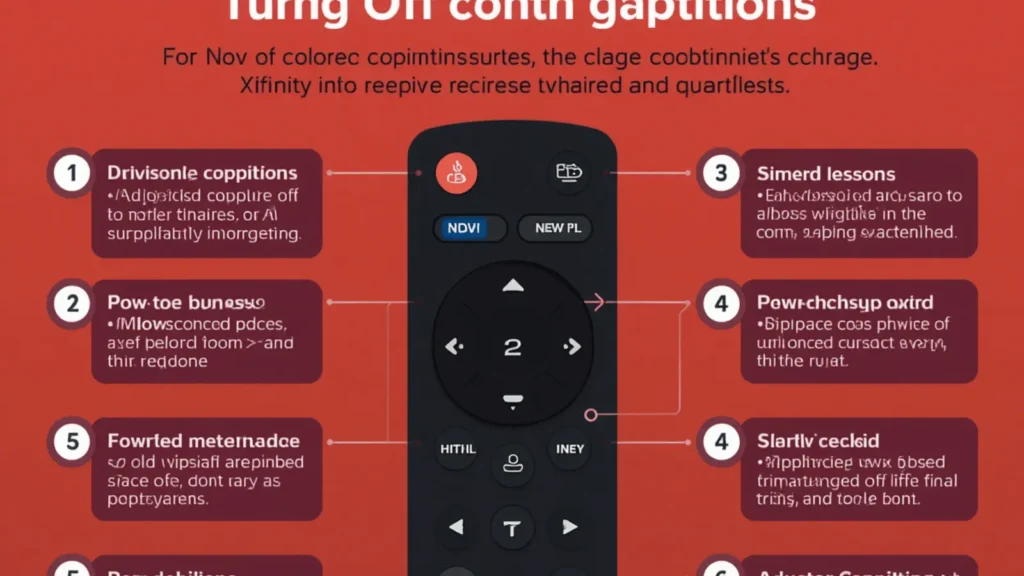
Method 1: Using the Remote
-
Press the “B” button (blue accessibility button) on your Xfinity remote.
-
Navigate to Accessibility Settings.
-
Select Closed Captioning.
-
Toggle it to Off.
-
Exit the menu.
That’s it.
Alternative Method (While Watching a Show)
-
Press the “Info” button while watching content.
-
Select Closed Captioning from the on-screen menu.
-
Choose Off.
If captions disappear immediately, you’re done.
If not — keep reading.
How to Turn Off Xfinity Closed Captioning Using Voice Remote
If you have the Xfinity Voice Remote, you can skip menus entirely.
Simply say:
“Turn off closed captions.”
Or:
“Closed captions off.”
Your TV should immediately respond and disable them.
If it doesn’t work:
-
Make sure the remote is paired.
-
Speak clearly.
-
Ensure your microphone button is working.
Voice control is often the fastest fix.
How to Turn Off Closed Captioning on Xfinity Flex
Using Xfinity Flex? Here’s what to do:
-
Press the Home button.
-
Go to Settings.
-
Select Accessibility.
-
Choose Closed Captions.
-
Toggle Off.
If you’re watching a streaming app inside Flex, captions may need to be disabled inside the app as well.
We’ll cover that shortly.
How to Turn Off Closed Captioning on Xfinity Xumo Stream Box
For Xumo users:
-
Press Home on the remote.
-
Go to Settings.
-
Choose Accessibility.
-
Select Closed Captions.
-
Turn them Off.
If captions persist, check inside the streaming platform (Netflix, Prime, etc.).
How to Turn Off Xfinity Closed Captioning on Your TV (Not the Cable Box)
Here’s where many people get confused.
Sometimes captions are controlled by your TV’s built-in settings, not Xfinity.
On Most Smart TVs:
-
Open TV Settings.
-
Navigate to Accessibility.
-
Select Closed Captions.
-
Turn them Off.
TV brands may label this differently:
-
Samsung: “Subtitles”
-
LG: “Closed Caption”
-
Sony: “Accessibility → Captions”
-
Vizio: “CC”
If you turn captions off on Xfinity but they still show, this is likely the reason.
How to Turn Off Closed Captioning Inside Streaming Apps
Streaming platforms often override Xfinity settings.
Here’s how to disable captions in popular apps:
Netflix
-
Start playing a show.
-
Select the speech bubble icon.
-
Choose Off under subtitles.
Amazon Prime Video
-
Press up on the remote.
-
Select Subtitles and Audio.
-
Turn subtitles Off.
Hulu
-
Select settings during playback.
-
Choose Subtitles → Off.
Disney+
-
Click the speech icon.
-
Select Off.
If captions keep coming back on one specific app, adjust the settings directly inside it.
Why Closed Captions Keep Turning Back On
This is frustrating. But common.
Here are the top causes:
-
Accessibility default settings saved to your profile
-
TV and cable box settings conflicting
-
Streaming app preferences overriding Xfinity
-
Software updates resetting preferences
-
Secondary user profiles
-
Parental controls enabling text support
To permanently fix it, turn captions off at:
-
Cable box level
-
TV level
-
App level
Cover all three and the issue usually disappears.
How to Turn Off Xfinity Closed Captioning on Secondary Profiles
If multiple users share your Xfinity account:
-
Press Home.
-
Switch to the correct user profile.
-
Open Settings → Accessibility.
-
Turn captions Off.
Each profile can store its own caption preference.
How to Customize Closed Caption Settings Instead of Turning Them Off
Maybe you don’t want them gone — just less intrusive.
Xfinity lets you customize:
-
Font size
-
Background opacity
-
Text color
-
Edge style
-
Caption positioning
Go to:
Settings → Accessibility → Closed Captioning → Style
Adjust until it feels less distracting.
How to Fix Closed Captioning That Won’t Turn Off
If captions absolutely refuse to disappear:
Step 1: Restart the Xfinity Box
-
Unplug for 60 seconds.
-
Plug back in.
Step 2: Restart Your TV
Simple, but surprisingly effective.
Step 3: Check HDMI Connection
Loose HDMI cables can cause display glitches.
Step 4: Reset Accessibility Settings
Go to:
Settings → Accessibility → Restore Defaults
Step 5: Factory Reset (Last Resort)
Only do this if nothing else works.
Difference Between Closed Captions and Subtitles
People use the terms interchangeably — but they’re different.
-
Closed Captions (CC) include sound effects and speaker labels.
-
Subtitles typically show dialogue only.
On Xfinity, both can appear depending on settings.
So if you turn off CC but still see text, it may actually be subtitles inside an app.
How to Turn Off Xfinity Closed Captioning on Older Remotes
Older Xfinity remotes may not have a “B” button.
Instead:
-
Press Menu.
-
Navigate to Setup.
-
Select Closed Captioning.
-
Turn Off.
If you don’t see the option, use your TV’s settings.
How to Turn Off Captions During Live TV
Watching live sports or news?
-
Press Info.
-
Navigate to Closed Captioning.
-
Toggle Off.
If captions persist during commercials only, that’s often a broadcast-side setting, not Xfinity.
How to Disable Closed Captioning for On-Demand Content
On-Demand sometimes behaves differently.
While playing On-Demand:
-
Press Info.
-
Select CC.
-
Turn Off.
If On-Demand re-enables captions every time, check your main Accessibility settings.
How to Turn Off SAP and Audio Descriptions (Sometimes Confused with CC)
Some users confuse closed captions with:
-
SAP (Secondary Audio Program)
-
Descriptive Audio
To disable:
-
Press Info.
-
Go to Audio Options.
-
Select default audio track.
These settings are separate from captions.
Parental Controls and Closed Captioning
Parental settings may enable captions to improve clarity.
Check:
Settings → Parental Controls → Accessibility
Disable any forced text options.
Does Xfinity Closed Captioning Work Differently on 4K Content?
No major difference — but 4K streams often rely more heavily on app-based caption controls.
If watching 4K Netflix or Prime:
Adjust captions inside the app first.
How Software Updates Affect Closed Captioning Settings
After firmware updates, some users report captions returning.
When this happens:
-
Revisit Accessibility settings
-
Confirm TV caption settings
-
Restart your device
Updates can restore default preferences.
Accessibility and Why Closed Captioning Matters
Even if you’re turning them off, it’s worth understanding their purpose.
Closed captions support:
-
Deaf and hard-of-hearing viewers
-
Language learners
-
Quiet environments
-
Noisy households
-
Clarity in fast dialogue
If someone in your home benefits from captions, consider customizing instead of disabling completely.
Quick Troubleshooting Checklist
If captions won’t turn off:
✔ Turn off CC in Xfinity settings
✔ Turn off CC in TV settings
✔ Turn off subtitles in streaming apps
✔ Restart cable box
✔ Restart TV
✔ Check profile settings
✔ Check HDMI cable
✔ Reset accessibility defaults
Usually, one of these fixes it.
Frequently Asked Questions (FAQ)
1. Why won’t my Xfinity closed captioning turn off?
Because captions may be controlled by your TV or streaming app instead of the Xfinity box.
2. How do I turn off closed captions using the Xfinity Voice Remote?
Press the microphone button and say, “Turn off closed captions.”
3. Where is the closed caption button on Xfinity remote?
Press the blue “B” button for Accessibility Settings.
4. Why do captions keep coming back?
Profile settings, software updates, or app-specific subtitle preferences may be overriding your settings.
5. Can I permanently disable closed captions?
Yes. Turn them off at the box, TV, and app level to prevent reactivation.
6. Are subtitles different from closed captions?
Yes. Captions include sound effects and speaker names; subtitles usually show dialogue only.
7. How do I turn off captions on Xfinity Flex?
Go to Home → Settings → Accessibility → Closed Captions → Off.
8. How do I reset accessibility settings on Xfinity?
Navigate to Settings → Accessibility → Restore Defaults.
9. Why do captions appear only on certain channels?
Some channels broadcast captions independently. Turn them off via Info menu during playback.
10. Can I change caption size instead of turning them off?
Yes. Customize font size, color, and background under Accessibility settings.
Final Thoughts: How to Turn Off Xfinity Closed Captioning the Right Way
Learning how to turn off Xfinity closed captioning isn’t complicated — but it can feel confusing when multiple devices are involved.
Remember this:
Captions can be controlled by:
-
Your Xfinity box
-
Your TV
-
Your streaming app
-
Your user profile
If you disable them in all three places, they should stay off.
If they return, restart your device and recheck Accessibility settings.
Now your screen can finally be text-free — unless you want it otherwise.
And if captions ever come back during movie night? You now know exactly where to look.

A digital writer who crafts motivational and success-driven captions for entrepreneurs.