
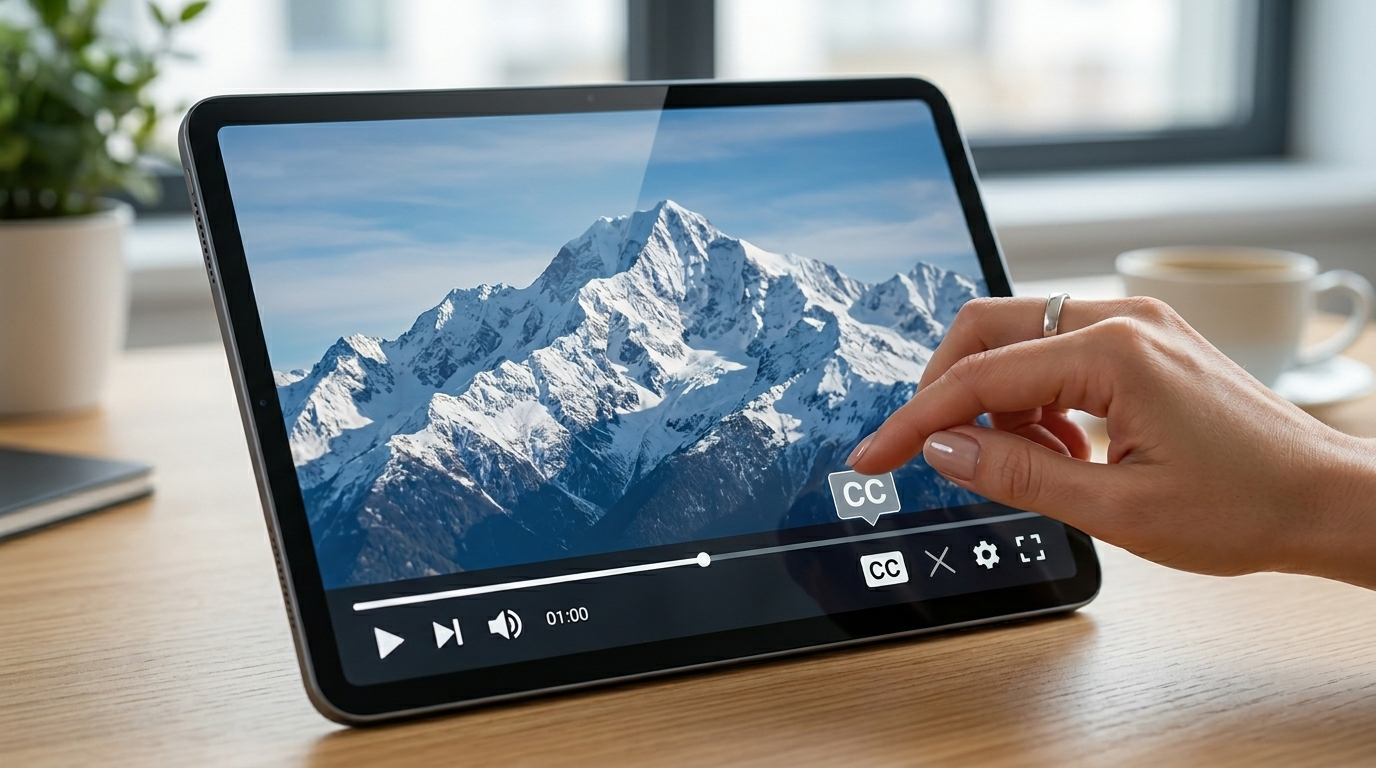
Open your YouTube video, tap or click the “CC” (Closed Captions) icon, and toggle it off.
On mobile, tap the screen → tap the three dots (⋮) → choose Captions → select Off. On desktop, click the CC button at the bottom of the video player to disable subtitles instantly.
Simple, right? 💁♀️
But if captions keep turning back on, look different, won’t disable, or you’re using Smart TV, iPhone, Android, or desktop — don’t worry.
I’ve got you covered in the most effortless, step-by-step way possible.
Let’s make your YouTube experience clean, distraction-free, and exactly how you like it.
Why Are Captions Showing on YouTube in the First Place?
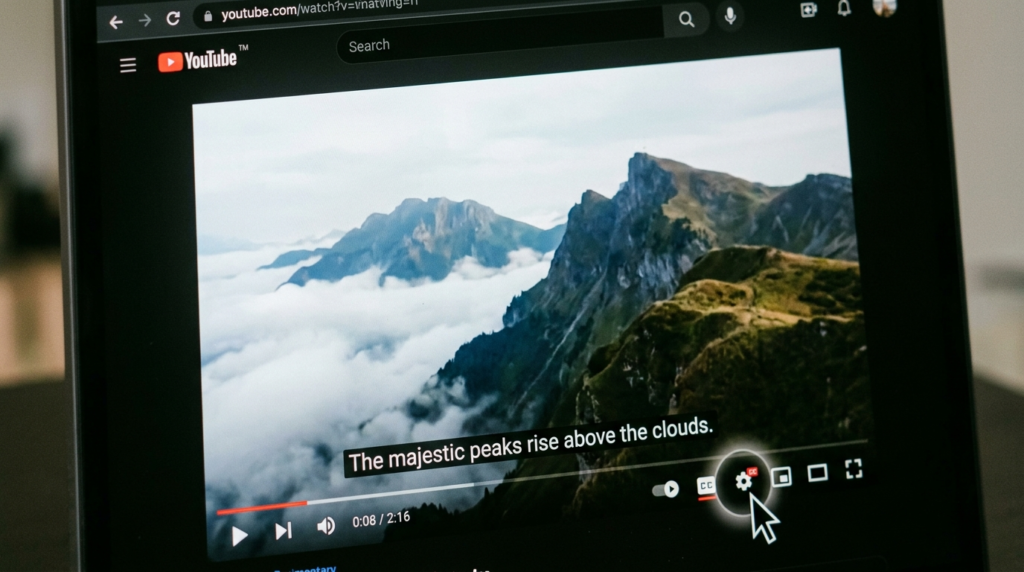
Before we dive deeper into how do I turn off captions on YouTube, let’s understand why they’re appearing.
Captions (also called subtitles or closed captions) may turn on because:
-
You enabled them previously
-
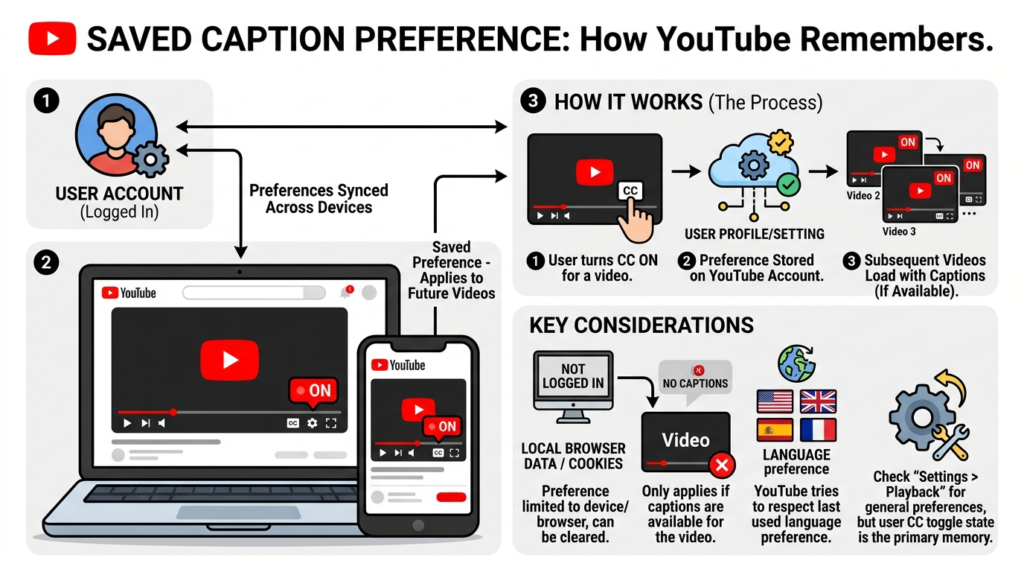
YouTube saved your preference
-
Autoplay started a new video with captions on
-
Accessibility settings are enabled
-
Your device has captions forced on
-
A creator uploaded videos with default subtitles
-
Your TV has system-level captions activated
Captions are incredibly helpful for accessibility, language learning, and watching without sound. But sometimes? You just want a clean screen. And that’s totally okay.
How Do I Turn Off Captions on YouTube Desktop (PC & Mac)
If you’re watching YouTube on a laptop or desktop browser, here’s exactly what to do:
Step-by-Step:
-
Open the YouTube video.
-
Look at the bottom of the video player.
-
Click the “CC” button.
-
If it’s highlighted, that means captions are on.
-
Click it once to turn captions off.
Done. ✨
Alternative Method:
-
Click the Settings (⚙️) icon
-
Select Subtitles/CC
-
Choose Off
If captions keep turning back on, check your YouTube account language settings.
How Do I Turn Off Captions on YouTube on iPhone (iOS)
Watching on your iPhone and those subtitles won’t disappear? Here’s your fix.
Steps:
-
Open the YouTube app.
-
Play your video.
-
Tap the screen once.
-
Tap the three dots (⋮) in the top right.
-
Tap Captions.
-
Select Off.
That’s it.
If captions are still appearing:
-
Go to iPhone Settings
-
Tap Accessibility
-
Tap Subtitles & Captioning
-
Turn off Closed Captions + SDH
Sometimes your phone settings override the app.
How Do I Turn Off Captions on YouTube on Android
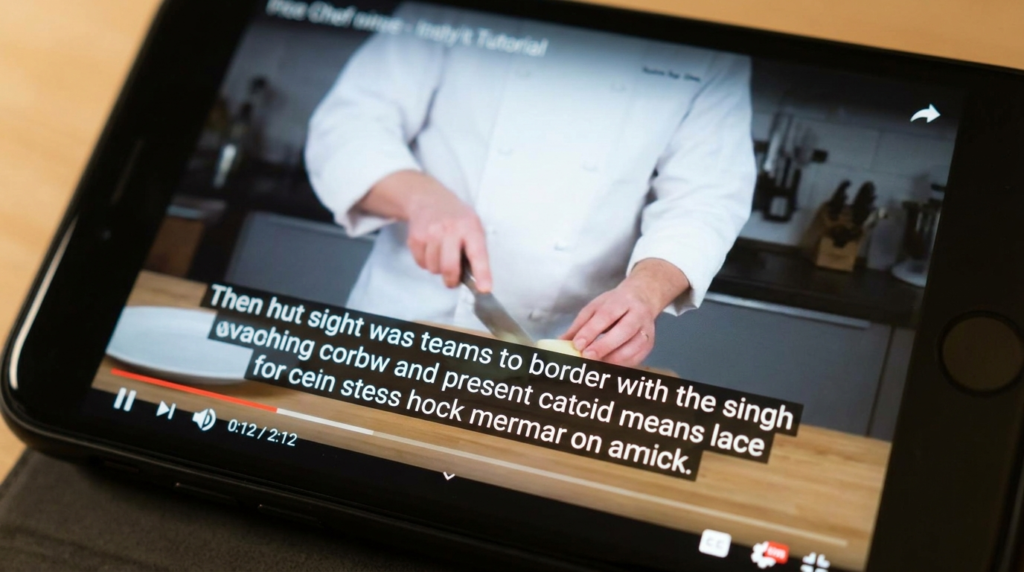
Android babes, I see you. 💕
Here’s how to disable YouTube captions:
-
Open the YouTube app.
-
Play a video.
-
Tap the video screen.
-
Tap the CC icon or three dots.
-
Tap Captions.
-
Choose Off.
If captions keep reappearing:
-
Go to Settings
-
Tap Accessibility
-
Turn off Captions
Easy.
How Do I Turn Off Captions on YouTube on Smart TV
Watching on your couch and the captions are ruining the vibe? Here’s what to do:
-
Open YouTube on your Smart TV.
-
Play your video.
-
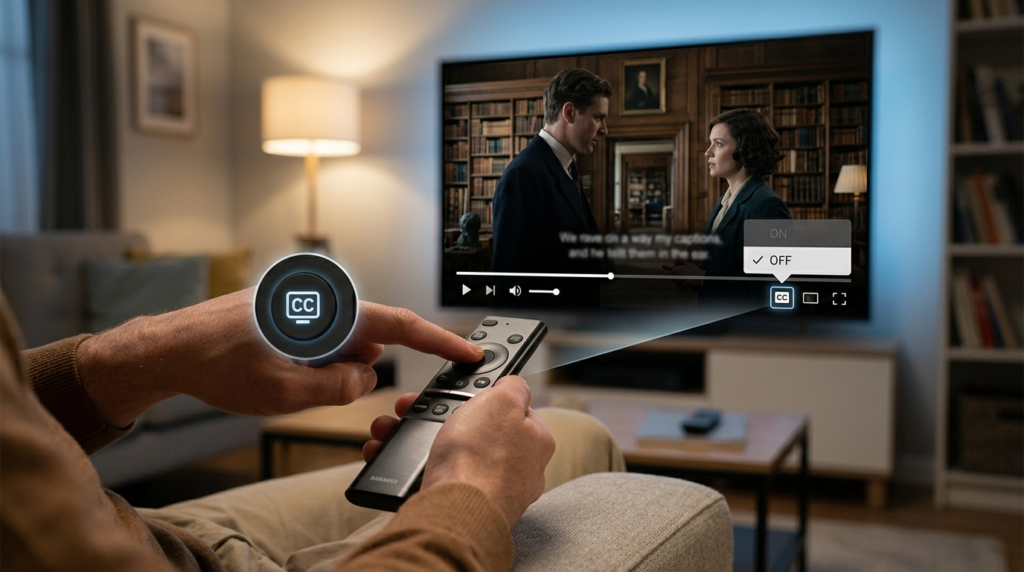
Use your remote to navigate to the bottom menu.
-
Select the CC icon.
-
Toggle it off.
If that doesn’t work:
-
Open TV Settings
-
Go to Accessibility
-
Disable Closed Captions
Some TVs force captions system-wide.
How Do I Turn Off Captions on YouTube Using Roku
Roku can be tricky. Here’s the solution:
-
Play your YouTube video.
-
Press the Star (*) button on your Roku remote.
-
Select Closed Captioning.
-
Choose Off.
If captions still appear:
-
Go to Roku Settings
-
Accessibility → Captions
-
Turn them off globally.
How Do I Turn Off Auto-Generated Captions on YouTube?
Auto-generated captions are created by YouTube’s speech recognition AI.
To disable them:
-
Turn off captions using the CC button.
-
You cannot permanently disable auto-generation globally.
-
You must turn them off per video unless your app saves preference.
If you’re a creator:
-
Go to YouTube Studio
-
Select Subtitles
-
Remove or edit captions manually.
Why Do YouTube Captions Keep Turning Back On?
This is one of the most searched questions related to how do I turn off captions on YouTube.
Common reasons:
-
Accessibility settings are enabled
-
YouTube saved caption preference
-
Multiple profiles on Smart TV
-
App glitch
-
Outdated app version
-
Browser extensions interfering
Fix It:
-
Update the YouTube app
-
Clear app cache
-
Restart your device
-
Log out and log back in
-
Check device-level caption settings
How to Change Caption Language Instead of Turning Them Off
Sometimes you don’t want them off — just in English.
Steps:
-
Click/tap Settings (⚙️)
-
Select Subtitles/CC
-
Choose preferred language
This works for multilingual videos with translation support.
How to Permanently Disable YouTube Captions (Account Level)
YouTube doesn’t provide a “never show captions” master switch, but you can reduce reappearance:
-
Turn captions off on a video.
-
Stay logged in.
-
Don’t manually turn them back on.
YouTube remembers recent preference per device.
How Do I Turn Off Live Stream Captions on YouTube?
Live streams may have auto-captioning enabled.
To turn them off:
-
Tap the CC icon
-
Or tap Settings → Captions → Off
Some creators lock captions on for accessibility — in that case, you may not be able to disable them.
Difference Between Subtitles and Closed Captions on YouTube
Understanding this helps when troubleshooting.
-
Subtitles: Translation of spoken dialogue.
-
Closed Captions (CC): Include sound effects (music, laughter, etc.).
When searching how do I turn off captions on YouTube, you’re usually disabling closed captions.
How to Adjust Caption Size Instead of Turning Them Off
Maybe they’re just too big?
Steps:
-
Settings → Subtitles/CC
-
Click Options
- Adjust:
-
Font size
-
Background opacity
-
Text color
-
Window color
-
Font size
Perfect if you want subtle captions without distraction.
How to Turn Off YouTube Shorts Captions
YouTube Shorts sometimes auto-enable captions.
To disable:
-
Tap the Short.
-
Tap the three dots.
-
Select Captions
-
Choose Off
If captions are embedded into the video by the creator, they cannot be removed.
How to Turn Off YouTube Captions in Browser Settings
Sometimes Chrome or Safari extensions force captions.
Try:
-
Disable extensions
-
Clear cookies
-
Update browser
-
Reset YouTube settings
Troubleshooting: Captions Won’t Turn Off (Complete Checklist)
If you’ve tried everything, run through this checklist:
✔ Restart device
✔ Update YouTube app
✔ Clear cache
✔ Disable system accessibility captions
✔ Log out/in
✔ Check TV caption settings
✔ Try different video
✔ Reinstall app
99% of caption issues resolve with these steps.
Accessibility Note: Why Captions Matter
Even though you’re searching how do I turn off captions on YouTube, remember:
Captions help:
-
People who are deaf or hard of hearing
-
Language learners
-
Viewers in silent environments
-
People with auditory processing differences
Turning them off is a personal preference — but accessibility features are important globally.
How Creators Manage Captions on Their Channel
If you’re a YouTube creator:
-
Go to YouTube Studio
-
Click Subtitles
-
Select video
-
Edit or remove captions
Auto captions can be improved for SEO and accessibility.
SEO Insight: Why YouTube Captions Improve Search Ranking
Fun fact:
Captions actually help:
-
Video SEO
-
Keyword indexing
-
Discoverability
-
Watch time
YouTube reads caption text for context.
So while you might disable them visually, they still help the algorithm behind the scenes.
FAQ: How Do I Turn Off Captions on YouTube?
1. How do I turn off captions on YouTube permanently?
You cannot permanently disable them globally, but YouTube remembers your last preference per device.
2. Why do captions keep coming back on YouTube?
Usually due to accessibility settings, app glitches, or device-level caption settings.
3. How do I turn off captions on YouTube TV?
Play video → Select CC icon → Toggle off. Also check TV Accessibility settings.
4. Can I disable auto captions completely?
No, but you can turn them off per video.
5. Why can’t I remove captions from some videos?
Some creators embed subtitles directly into the video.
6. How do I change caption language?
Settings → Subtitles/CC → Select language.
7. How do I fix YouTube captions not turning off?
Update app, clear cache, check system accessibility settings.
8. Do captions affect video quality?
No. They do not change resolution or playback quality.
9. Are captions the same as subtitles?
Not exactly. Closed captions include sound cues; subtitles typically translate dialogue.
10. Why are captions on by default?
YouTube may enable them based on previous viewing behavior or accessibility settings.
Common Mistakes to Avoid
-
Turning off captions only inside the app but forgetting device settings
-
Ignoring Smart TV accessibility settings
-
Not updating the YouTube app
-
Confusing embedded subtitles with CC
-
Forgetting browser extensions
Quick Summary (Save This 💾)
If you’re asking how do I turn off captions on YouTube, here’s the simplified version:
-
Desktop: Click CC
-
iPhone: Tap screen → Three dots → Captions → Off
-
Android: Tap screen → CC → Off
-
Smart TV: Use remote → CC → Off
-
Roku: Press * → Closed Captioning → Off
-
If it won’t turn off → Check Accessibility Settings
Final Thoughts: Enjoy YouTube Your Way ✨
Now you fully know how do I turn off captions on YouTube — on every device, every platform, every situation.
Whether you’re binge-watching your favorite vlogs, streaming music videos, catching up on tutorials, or watching late-night comfort content — your screen should feel exactly how you want it.
Clean.
Clear.
Distraction-free.
If this guide helped you, save it for later 💾 or share it with someone who keeps yelling, “WHY ARE THE SUBTITLES STILL ON?” 😅
You deserve a seamless YouTube experience.

A digital writer who crafts motivational and success-driven captions for entrepreneurs.