
On the Sony KD-55X80CK, closed captions for HDMI-connected devices (like cable boxes, gaming consoles, Roku, Fire Stick, or Blu-ray players) are typically controlled by the external device — not the TV itself.
To enable captions, you must activate them either through the Sony TV accessibility menu and/or inside the HDMI source device’s own settings.
Now let’s break that down properly — step by step — so you can get subtitles working beautifully on your Sony KD-55X80CK without stress, confusion, or tech headaches. 💛
Understanding Closed Caption on the Sony KD-55X80CK
The Sony KD-55X80CK is a Google TV model with advanced accessibility features. But here’s the catch:
-
Built-in streaming apps (Netflix, YouTube, Prime Video) → Captions controlled inside the app or TV settings.
-
HDMI devices (cable box, PS5, Apple TV, Roku, Blu-ray) → Captions are usually controlled by that external device.
This difference is the #1 reason people think captions “don’t work” on HDMI ports.
It’s not broken. It’s just layered.
How HDMI Closed Captioning Actually Works
Let’s make this super clear.
When you plug something into HDMI:
-
The HDMI device sends video and audio.
-
It may also send embedded subtitle data.
-
The TV displays what it receives.
-
In many cases, the TV does NOT override the HDMI device’s caption settings.
So if captions aren’t showing, the issue is often inside:
-
Your cable box settings
-
Your streaming device settings
-
Your gaming console
-
Your Blu-ray subtitle menu
Understanding this relationship changes everything.
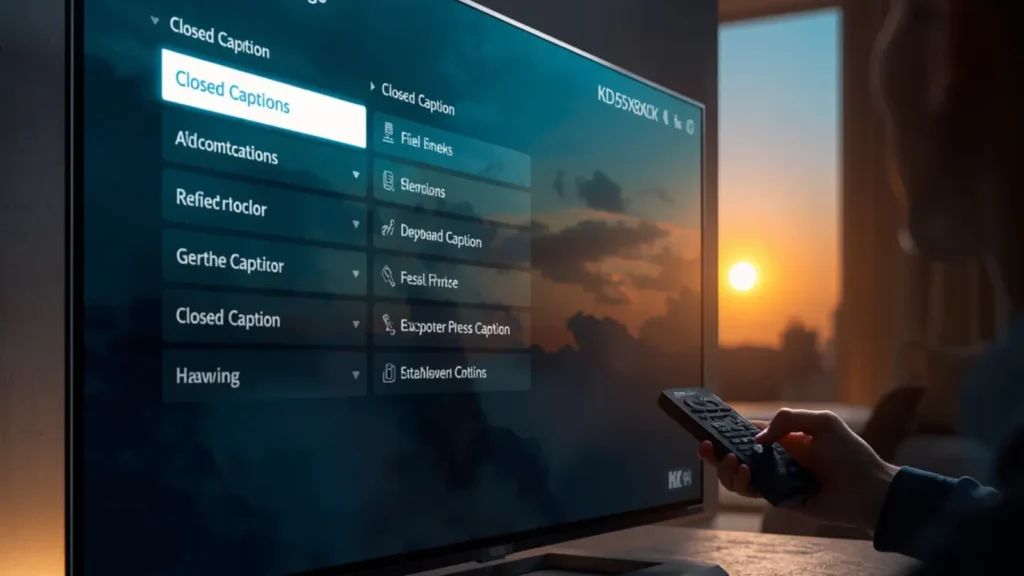
How to Turn On Closed Caption on Sony KD-55X80CK (TV Menu Method)
First, try enabling captions directly on the TV:
-
Press Home on your remote.
-
Go to Settings.
-
Select System.
-
Choose Accessibility.
-
Click Captions (CC).
-
Turn captions ON.
-
Adjust style preferences (font, size, background).
If your HDMI source supports TV-controlled captions, this may instantly fix it.
If not? Keep reading.
Enabling Closed Caption on HDMI Cable Box
If you’re using:
-
Xfinity
-
Spectrum
-
DirecTV
-
Dish
-
Local cable provider
You must enable captions inside the cable box menu.
General steps:
-
Use your cable remote.
-
Open Settings or Accessibility.
-
Locate Closed Captioning.
-
Turn ON.
Each provider uses slightly different menus, but the option is always inside accessibility or display settings.
Turning On Subtitles for HDMI Streaming Devices
For Roku (HDMI):
-
Settings → Accessibility → Captions → Always On
For Amazon Fire TV:
-
Settings → Accessibility → Closed Caption → On
For Apple TV:
-
Settings → Accessibility → Subtitles & Captioning → Closed Captions + SDH
For Chromecast with Google TV:
-
Settings → Accessibility → Captions → Enable
If you skip this step, the Sony TV won’t magically create captions.
Closed Caption on PS5, Xbox, and Gaming Consoles
Gaming through HDMI?
Captions are controlled per game.
On PS5:
-
Settings → Accessibility → Closed Captions → Enable
On Xbox:
-
Settings → Ease of Access → Captioning → On
Important note: Some games have subtitles only inside their own game settings menu.
Why Closed Caption May Not Appear on HDMI
Here are the most common causes:
-
HDMI device captions disabled
-
TV captions turned off
-
Source content doesn’t include captions
-
Using an outdated HDMI cable
-
Audio format conflicts (rare)
-
HDMI-CEC conflicts
It’s rarely a hardware failure.
Checking HDMI Signal Compatibility
The Sony KD-55X80CK supports:
-
HDMI 2.0
-
eARC (on supported port)
-
4K HDR
-
Dolby Vision
But captions rely on signal metadata.
If you’re using an older cable:
-
Upgrade to high-speed HDMI.
-
Ensure firmware is updated.
Sometimes it’s that simple.
Updating Sony KD-55X80CK Firmware
Software glitches can block accessibility features.
To update:
-
Home → Settings
-
System → About
-
System Update
-
Check for Updates
Always update both:
-
The TV
-
The HDMI device
Tech loves updates.
Adjusting Caption Style on Sony KD-55X80CK
Want bigger text? Better contrast?
Go to:
Settings → Accessibility → Caption Style
You can adjust:
-
Font size
-
Font color
-
Background opacity
-
Edge style
This is especially helpful for:
-
Seniors
-
Hearing-impaired users
-
Noisy environments
-
Watching late at night
Comfort matters.
Using HDMI-CEC and Caption Conflicts
Sony calls HDMI-CEC “BRAVIA Sync.”
Sometimes BRAVIA Sync interferes with how commands pass between devices.
If captions won’t respond:
-
Disable BRAVIA Sync temporarily.
-
Restart TV.
-
Test again.
Then re-enable if needed.
Closed Caption vs Subtitles: Know the Difference
Closed Caption (CC):
-
Includes sound effects
-
Identifies speakers
-
Designed for accessibility
Subtitles:
-
Translates dialogue only
If your HDMI device only offers subtitles, you may not see full caption formatting.
That’s normal behavior.
Fixing Captions Not Working on Specific HDMI Port
If only HDMI 1 fails:
-
Switch device to HDMI 2.
-
Test captions.
-
Reset HDMI input label.
-
Try factory reset (last resort).
Ports rarely fail — but it’s possible.
Factory Reset as a Final Option
If nothing works:
-
Settings → System → About
-
Reset
-
Factory Data Reset
Warning:
This deletes Wi-Fi, apps, preferences.
Use only if other troubleshooting fails.
Accessibility Benefits of Closed Caption on HDMI
Closed captions are not just for hearing impairment.
They help:
-
Watching in noisy rooms
-
Learning English
-
Improving comprehension
-
Understanding accents
-
Quiet late-night viewing
It’s a lifestyle convenience feature — not just a technical tool.
Common User Questions About KD-55X80CK Closed Caption on HDMI Ports
Here’s what most owners ask:
-
Why do captions work on Netflix but not cable?
-
Why do captions disappear when switching inputs?
-
Can the TV force captions on HDMI?
-
Why are captions delayed?
-
Why are captions out of sync?
All of these are typically source-device issues.
How to Sync Captions That Are Delayed
If captions lag:
-
Check HDMI device audio format (PCM recommended)
-
Disable audio passthrough temporarily
-
Restart TV and device
-
Check for firmware updates
Caption delay is usually audio processing related.
Using eARC and Closed Caption
If using eARC with a soundbar:
-
Ensure captions are still enabled on source.
-
Audio routing does not remove subtitle data.
-
If issues occur, test without soundbar.
Rarely, audio routing changes behavior.
Testing Captions Properly
To confirm everything works:
-
Enable captions on TV.
-
Enable captions on HDMI device.
-
Play known caption-supported content.
-
Switch inputs and return.
This eliminates guesswork.
Preventing Future Caption Issues
Smart maintenance tips:
-
Keep firmware updated.
-
Use certified HDMI cables.
-
Avoid cheap splitters.
-
Restart devices monthly.
-
Label HDMI inputs clearly.
Prevention beats troubleshooting.
When It Might Be a Hardware Issue
It’s rare — but possible.
Signs of hardware problem:
-
HDMI video flickers
-
No signal detected
-
Audio cutting out
-
Captions never display from any HDMI source
In that case:
Contact Sony Support or warranty provider.
Frequently Asked Questions (FAQ)
1. Can the Sony KD-55X80CK force closed captions on HDMI devices?
No. Most HDMI captions must be enabled on the external device itself.
2. Why do captions work on Netflix but not my cable box?
Because Netflix is built into the TV. Cable box captions are controlled inside the cable box.
3. Does HDMI version affect closed captions?
Not directly, but outdated cables can cause signal instability.
4. Why are captions delayed?
Audio processing or HDMI passthrough settings often cause delay.
5. Do all HDMI devices support closed captions?
Most do, but some gaming content relies on in-game subtitle settings.
6. Where is caption style settings on Sony KD-55X80CK?
Settings → Accessibility → Captions → Style.
7. Can factory reset fix caption problems?
Yes, but only if the issue is software-related.
8. Does BRAVIA Sync affect captions?
Sometimes. Disabling it temporarily can help diagnose issues.
9. Why do captions disappear after switching inputs?
Because each HDMI device has independent caption control.
10. Is closed caption the same as subtitles?
No. Closed captions include sound cues; subtitles usually do not.
Quick Troubleshooting Checklist
If KD 55X80CK closed caption on HDMI ports isn’t working:
✔ Turn on captions in TV settings
✔ Turn on captions in HDMI device settings
✔ Restart both devices
✔ Update firmware
✔ Test different HDMI port
✔ Replace HDMI cable
✔ Disable BRAVIA Sync
✔ Check audio format
Simple steps. Big difference.
Final Thoughts: Making Closed Caption Work Beautifully on Your KD-55X80CK
Here’s the truth:
The Sony KD-55X80CK is an excellent 4K TV with strong accessibility support.
But when it comes to closed caption on HDMI ports, control usually lives inside the external device.
Once you understand that relationship, everything feels easier.
No more frustration.
No more guessing.
No more wondering if your TV is broken.
Just clear dialogue, accessible viewing, and smooth entertainment — exactly how it should be. 💛
If this guide helped you, save it for later or share it with someone troubleshooting their Sony TV. Accessibility should always be simple.

A creative caption writer from California who specializes in romantic and lifestyle Instagram captions.