
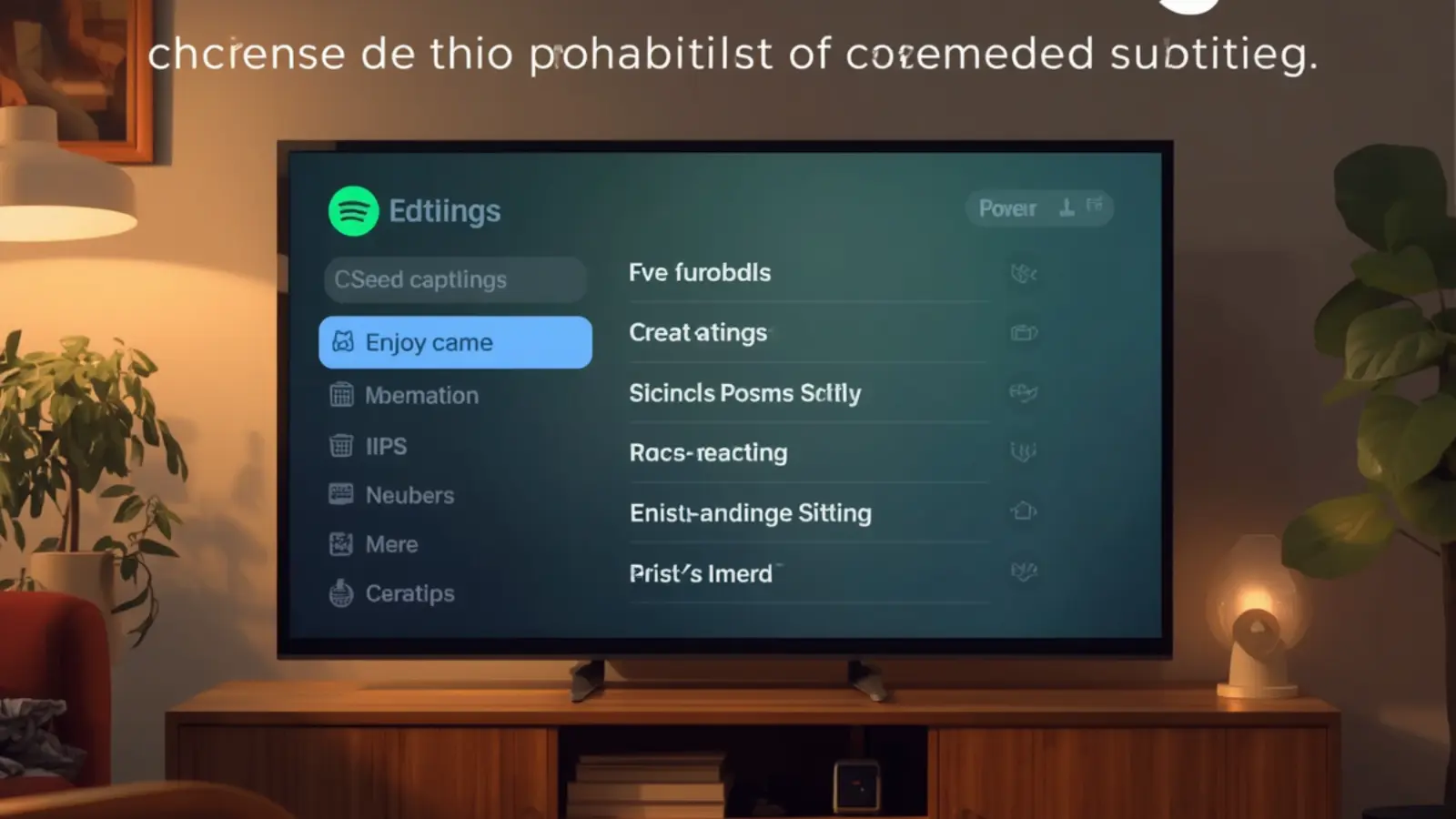
Closed captions can be turned on through your TV’s Settings menu, usually under Accessibility, Subtitles, or Caption options.
You can also enable captions through your cable box, streaming device (like Roku or Fire Stick), or within individual apps like Netflix or YouTube.
Once activated, captions display spoken dialogue and sound cues as on-screen text.
Now let’s walk through everything — step-by-step, device-by-device — so you can turn captions on in minutes (even if technology isn’t your thing).
What Are Closed Captions on TV?
Closed captions (CC) are on-screen text that display spoken dialogue, background sounds, and audio cues like:
- [door slams]
- [applause]
- [music playing]
They’re designed for people who are deaf or hard of hearing — but honestly? They’re helpful for everyone.
Maybe you’re:
- Watching late at night with the volume low
- Trying to understand accents
- Following fast dialogue
- Learning English
- Watching in a noisy room
Closed captions make TV easier, clearer, and more enjoyable.
How to Get Closed Caption on Smart TV (General Method)
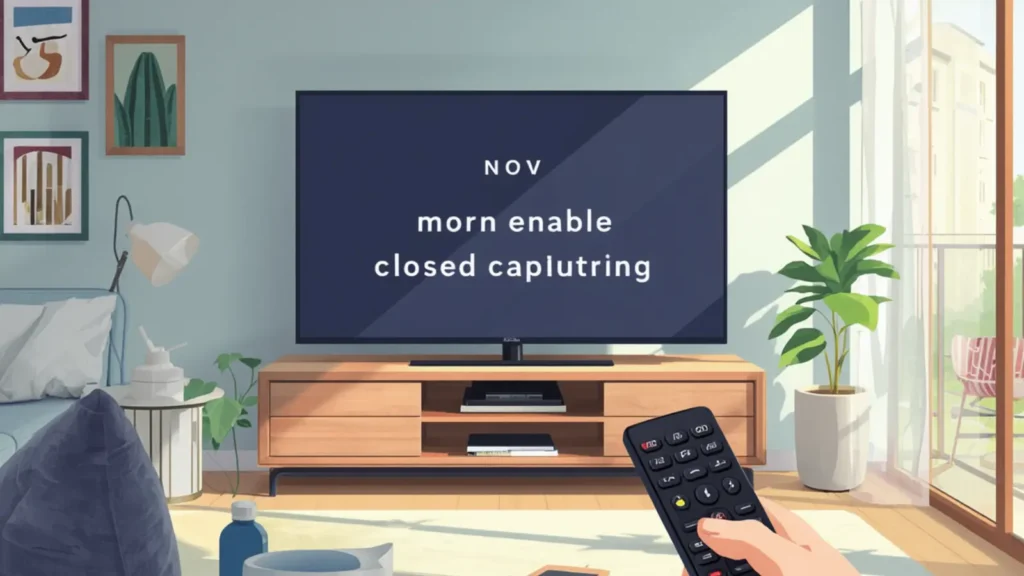
Most Smart TVs follow a similar process. Here’s the universal way to turn captions on:
- Press the Home or Menu button on your remote
- Go to Settings
- Select Accessibility (or General > Accessibility)
- Choose Closed Captions or Subtitles
- Toggle On
That’s it.
If you don’t see captions immediately, try changing the channel or restarting the app.
How to Get Closed Caption on Samsung TV


Samsung TVs make it simple.
Steps:
- Press Home on your Samsung remote
- Go to Settings
- Select General
- Choose Accessibility
- Click Caption Settings
- Turn Caption On
You can also customize:
- Font size
- Text color
- Background color
- Caption opacity
Pro tip: If captions don’t appear, check if your cable box also has captions turned off.
How to Get Closed Caption on LG TV
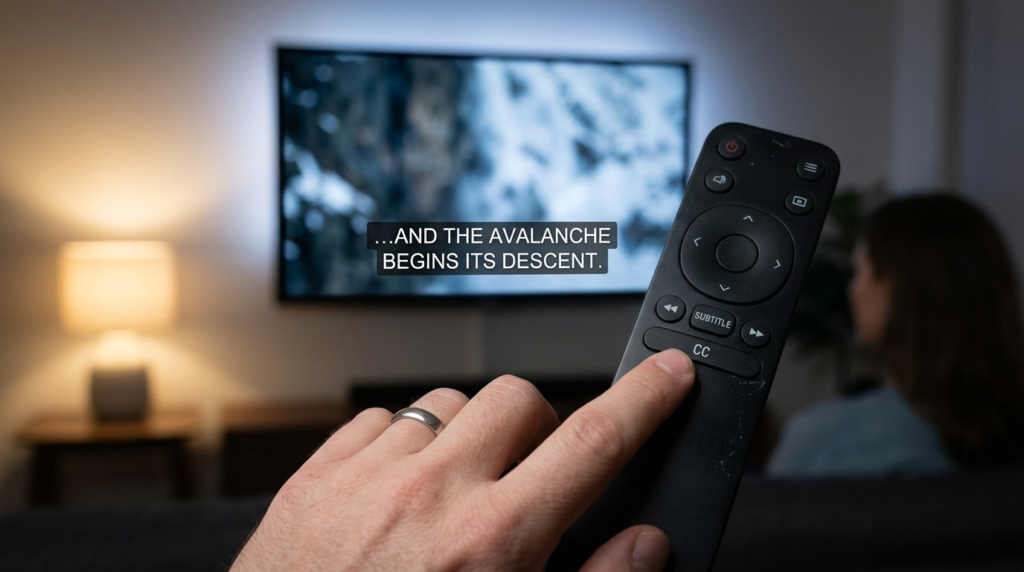
For LG Smart TVs:
- Press the Settings (gear icon) button
- Select All Settings
- Go to Accessibility
- Choose Closed Caption
- Toggle On
LG also allows style adjustments like font size and background transparency.
How to Get Closed Caption on Sony TV

Sony TVs (Android or Google TV models):
- Press Home
- Go to Settings
- Select Accessibility
- Choose Captions
- Turn captions On
On newer Google TV models:
- Settings > System > Accessibility > Caption Preferences
How to Get Closed Caption on Vizio TV


4
For Vizio TVs:
- Press Menu on the remote
- Select Closed Captions
- Toggle On
Or:
- Menu > Accessibility > Captions
How to Turn On Closed Caption Through Cable Box
Sometimes captions are controlled by your cable provider — not the TV.
Try this:
- Press Menu on your cable remote
- Go to Settings
- Find Accessibility or Closed Captioning
- Turn it On
Common providers:
- Xfinity
- Spectrum
- Dish
- DirecTV
If captions won’t show, your cable box may override TV settings.
How to Get Closed Caption on Roku


4
Roku makes it very easy.
Method 1: System-wide
- Press Home
- Go to Settings
- Select Accessibility
- Choose Captions Mode
- Select On Always
Method 2: While watching content
- Press the * button on the remote
- Turn captions On
How to Get Closed Caption on Amazon Fire Stick


4
Steps:
- Go to Settings
- Select Accessibility
- Click Closed Caption
- Toggle On
You can also turn captions on inside each streaming app.
How to Get Closed Caption on Apple TV


4
Steps:
- Open Settings
- Select Accessibility
- Choose Subtitles and Captioning
- Turn on Closed Captions + SDH
How to Turn On Closed Captions in Netflix
Inside Netflix:
- Play a show
- Select Audio & Subtitles
- Choose English (CC) or your preferred language
Works on Smart TVs, streaming devices, and gaming consoles.
How to Turn On Closed Captions in YouTube
While watching a video:
- Click the CC button
- Or go to Settings > Subtitles/CC
YouTube may auto-generate captions if none are provided.
Why Closed Captions Might Not Be Working
If captions aren’t showing:
- Cable box settings may override TV
- App settings may differ from system settings
- The program may not support captions
- You may need to restart the TV
- Firmware update might be required
Try turning captions off and back on.
How to Customize Closed Caption Style
Most modern TVs let you adjust:
- Font size
- Text color
- Background color
- Text opacity
- Caption edge style
This is especially helpful if:
- Text is too small
- Background makes captions hard to read
- You have vision sensitivity
How to Get Closed Caption on Older TV Models
If you have a non-smart TV:
- Use the CC button on the remote
- Check your cable box settings
- Look for Menu > Setup > Closed Caption
Older analog TVs may require a converter box.
How to Turn Off Closed Caption on TV
To disable:
- Go to Settings
- Accessibility
- Closed Captions
- Toggle Off
Or use the cable box menu.
Are Closed Captions the Same as Subtitles?
Not exactly.
Closed Captions:
- Include sound effects
- Include speaker identification
Subtitles:
- Only show dialogue
Captions are more detailed.
Do All TV Channels Support Closed Caption?
Most major broadcasters are required to provide captions.
However:
- Some live broadcasts may have delays
- Older content may lack captions
- Streaming quality varies
Benefits of Using Closed Captions
Captions help with:
- Better comprehension
- Language learning
- Accessibility
- Watching in noisy spaces
- Watching quietly at night
Studies show captions improve information retention.
How to Enable Live Captions on Google TV
Google TV supports live captions for some apps:
- Settings
- Accessibility
- Live Caption
- Toggle On
This auto-generates captions for audio.
How to Fix Caption Delay or Sync Issues
If captions are out of sync:
- Restart the TV
- Restart the app
- Check internet connection
- Update software
- Try a different channel
Streaming apps sometimes buffer captions separately.
FAQ: How to Get Closed Caption on TV
1. Why can’t I find closed captions in settings?
Look under Accessibility or Subtitles. Some TVs hide it under Advanced Settings.
2. Why are captions only showing on some channels?
Not all programs support captions.
3. Do I need internet for captions?
For streaming apps, yes. For cable TV, no.
4. Why are captions stuck on?
Your cable box may have captions enabled.
5. Can I change caption size?
Yes, most Smart TVs allow font customization.
6. What does CC mean on TV remote?
CC stands for Closed Caption.
7. Are captions free?
Yes. There is no extra charge.
8. Can I get captions in other languages?
Yes, if supported by the content provider.
9. Why are captions behind the audio?
This is usually a streaming sync issue.
10. Can I use captions without sound?
Yes. Captions work independently.
Final Thoughts: Turning On Closed Caption Shouldn’t Be Complicated
Now you know exactly how to get closed caption on TV, no matter what device you’re using — Samsung, LG, Sony, Roku, Fire Stick, cable box, or streaming apps.
It’s one small setting that can completely change your viewing experience.
Whether you need captions for accessibility, clarity, language learning, or just quiet nighttime watching — you now have everything you need.
Go grab your remote, open settings, and turn them on.
Simple. Done. 🎬

A digital writer who crafts motivational and success-driven captions for entrepreneurs.