
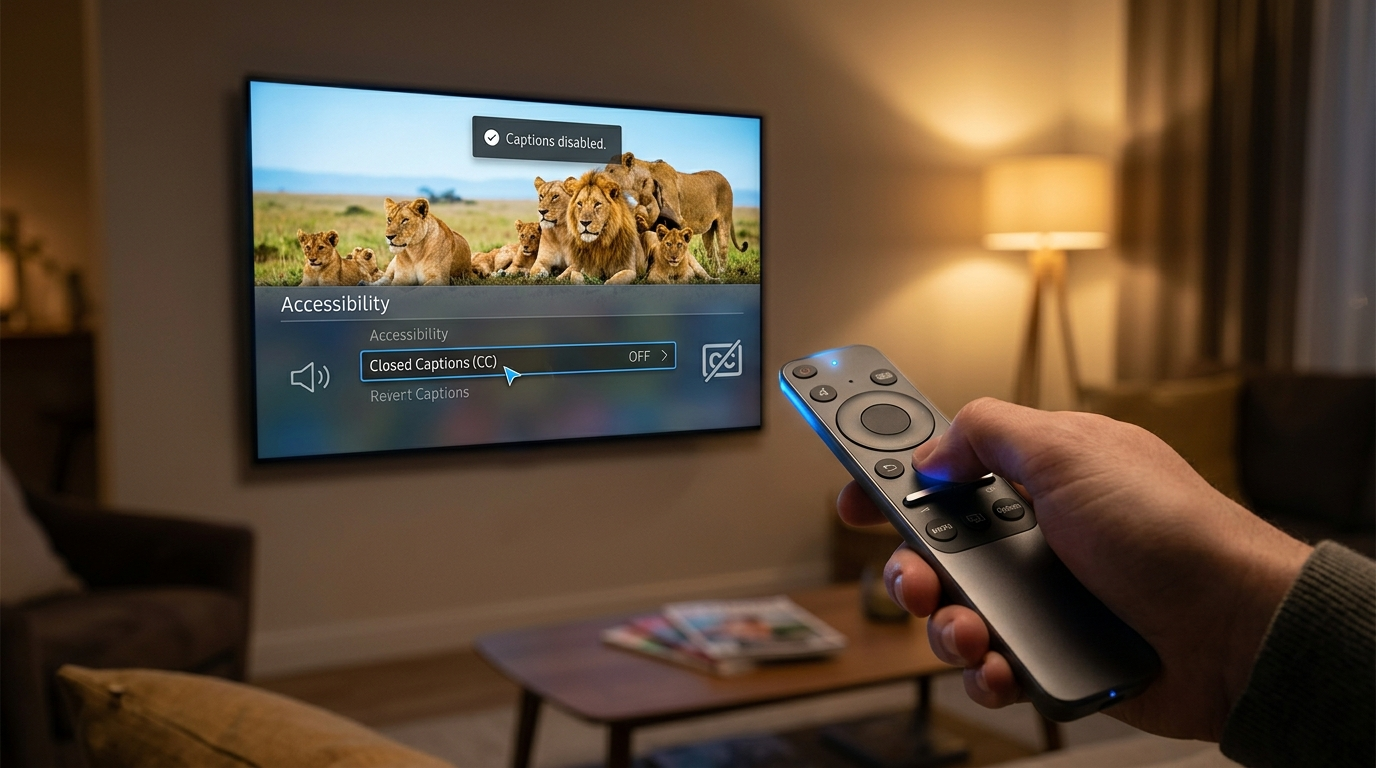
Go to your TV’s Settings > Accessibility (or Subtitles/Closed Captions) and toggle Closed Captions (CC) to Off.
On most smart TVs (Samsung, LG, Sony, Roku, Fire TV, Apple TV), you can also turn captions off directly from the remote control’s CC button or through the playback settings of streaming apps like Netflix, YouTube, or Prime Video.
But here’s the thing — sometimes captions won’t go away.
Maybe they’re stuck.
Maybe they’re coming from your cable box.
Maybe your child turned them on and now you’re trapped in subtitle chaos.
Don’t worry. I’ve got you.
This guide walks you through exactly how to remove subtitles from your TV, no matter the brand, device, or streaming app.
We’ll cover Samsung, LG, Roku, Fire TV, cable boxes, Apple TV, PlayStation, Xbox, and even those mysterious “why are captions still on?!” situations.
Let’s fix it. ✨
Why Are Captions Showing on My TV?
Before we jump into how to take captions off TV, let’s understand why they’re there.
Closed captions (CC) or subtitles may appear because:
- Accessibility settings were enabled
- A streaming app turned subtitles on
- Your cable/satellite box has captions activated
- Your TV remote’s CC button was pressed accidentally
- Parental controls changed system settings
- An external device (like Roku or Firestick) has captions on
Important: Sometimes captions are controlled by the TV, sometimes by the streaming device, and sometimes by the app itself.
That’s why turning them off in one place may not work.
Let’s go step-by-step.
How to Take Captions Off TV on Samsung Smart TV
Samsung TVs are super common, so let’s start here.
Method 1: Turn Off Captions via Settings
- Press the Home button on your Samsung remote.
- Go to Settings.
- Select General.
- Click Accessibility.
- Choose Caption Settings.
- Toggle Caption to OFF.
Done. 🎉
Method 2: Quick Disable During Playback
While watching a show:
- Press the down arrow.
- Select Subtitles/CC.
- Choose Off.
If captions still show, check your streaming app settings (Netflix, YouTube, etc.).
How to Take Captions Off TV on LG Smart TV
LG makes it simple.
Steps:
- Press the Settings (gear icon) on your remote.
- Go to All Settings.
- Select Accessibility.
- Click Subtitle.
- Toggle Off.
If you’re inside an app like Netflix:
- Pause the video.
- Select Audio & Subtitles.
- Turn subtitles off there too.
How to Take Captions Off TV on Roku TV
4
Roku captions can be controlled in two places.
Turn Off from Roku Settings
- Press Home.
- Go to Settings.
- Select Accessibility.
- Click Captions Mode.
- Choose Off.
Turn Off During Playback
- Press the Star (*) button on your remote.
- Select Closed Captioning.
- Choose Off.
If captions keep reappearing, check inside the streaming app.
How to Take Captions Off TV on Amazon Fire TV / Firestick
4
Fire TV controls captions through accessibility.
Steps:
- Go to Settings.
- Select Accessibility.
- Click Closed Caption.
- Toggle Off.
Inside Prime Video:
- Pause video.
- Click Subtitles & Audio.
- Select Off.
How to Take Captions Off TV on Apple TV
4
Method 1: System-Wide
- Go to Settings.
- Select Accessibility.
- Click Subtitles and Captioning.
- Turn Closed Captions + SDH off.
Method 2: During Playback
Swipe down on the remote touchpad → Subtitles → Off.
How to Take Captions Off TV from Cable or Satellite Box
Sometimes captions aren’t from the TV at all.
They’re from:
- Xfinity
- DirecTV
- Dish Network
- Spectrum
General Steps:
- Press Menu on cable remote.
- Go to Settings.
- Find Accessibility or Closed Captions.
- Turn Off.
If captions remain, check your TV settings too.
How to Turn Off Subtitles on Netflix
Even if your TV captions are off, Netflix might override them.
Steps:
- Play a show.
- Pause it.
- Select Audio & Subtitles.
- Choose Off under Subtitles.
How to Turn Off Subtitles on YouTube
- Play a video.
- Click the CC button.
- Toggle it off.
On smart TVs, use playback controls to disable captions.
How to Take Captions Off TV Using Remote Shortcut
Many remotes have a CC button.
Press it once → captions turn off.
If that doesn’t work:
- Hold the button for 3–5 seconds.
- Check the menu manually.
Why Won’t Captions Turn Off on My TV?
This is the most frustrating situation.
Common causes:
- Captions enabled on both TV and streaming device
- App-specific subtitle override
- Cable box accessibility setting
- System glitch (restart needed)
Fix Checklist:
✔ Restart TV
✔ Restart streaming device
✔ Turn off captions everywhere (TV + device + app)
✔ Update firmware
✔ Factory reset (last resort)
Difference Between Subtitles and Closed Captions
Many people confuse these.
Subtitles: Show dialogue only.
Closed Captions (CC): Show dialogue + sound effects (door slams, music playing).
To fully remove captions from TV, disable both options.
How to Turn Off Captions for Hearing Impaired (CC & SDH)
Some TVs label captions as:
- CC
- SDH
- Closed Captioning
- Subtitles for the Deaf and Hard of Hearing
Make sure ALL are turned off.
How to Remove Subtitles from TV During Streaming
If captions appear only on one app:
The control is inside the app.
Pause video → Audio & Subtitles → Off.
This applies to:
- Hulu
- Disney+
- Prime Video
- HBO Max
- Apple TV+
How to Turn Off TV Captions Permanently
To prevent captions from coming back:
- Disable captions on TV.
- Disable on streaming device.
- Disable inside apps.
- Restart everything.
- Check parental/accessibility settings.
This ensures they stay off.
Troubleshooting Stuck Captions on TV
Still stuck?
Try this:
- Unplug TV for 60 seconds.
- Remove streaming device power.
- Clear app cache (if available).
- Reset accessibility settings.
- Update software.
If captions still won’t turn off, contact brand support.
How to Take Captions Off TV on Gaming Consoles
Xbox:
Settings → Ease of Access → Closed Captioning → Off.
PlayStation:
Settings → Accessibility → Closed Captions → Disable.
How to Turn Off TV Subtitles with Universal Remote
Some universal remotes have:
- A CC button
- An Accessibility menu
- A Setup button
Try pressing:
Menu → Settings → Accessibility → Off.
How to Restart TV to Fix Caption Glitches
A simple restart solves most issues.
Soft Restart:
- Turn TV off.
- Unplug for 60 seconds.
- Plug back in.
Hard Reset:
Factory reset (only if necessary).
Frequently Asked Questions (FAQ)
How do I remove subtitles from my TV screen?
Go to Settings > Accessibility > Closed Captions, then toggle Off. Also check your streaming app and cable box settings.
Why are captions still on after turning them off?
Because they may be enabled on your streaming device or app.
How do I turn off subtitles on Netflix TV?
Pause show → Audio & Subtitles → Select Off.
Is closed captioning the same as subtitles?
No. Closed captions include sound descriptions. Subtitles show dialogue only.
How do I permanently disable captions on my smart TV?
Turn them off in:
- TV settings
- Streaming device
-
Individual apps
Then restart the system.
Can I turn off captions with remote only?
Yes, if your remote has a CC button.
Why do captions keep turning back on?
App settings or accessibility defaults may re-enable them.
Do I need to reset my TV to remove captions?
Only if all other methods fail.
Final Thoughts: Now You Know How to Take Captions Off TV
Captions are amazing for accessibility.
But if they’re distracting you from your movie night? They’ve got to go.
Now you know how to take captions off TV on:
- Samsung
- LG
- Roku
- Fire TV
- Apple TV
- Cable boxes
- Streaming apps
- Gaming consoles
If captions won’t turn off, remember:
It’s usually enabled somewhere else.
Follow the full checklist, restart your system, and you’ll be subtitle-free in minutes. ✨
Now go enjoy your show — without text blocking your screen.
A lifestyle blogger creating cute, trendy, and relatable captions for everyday posts.