
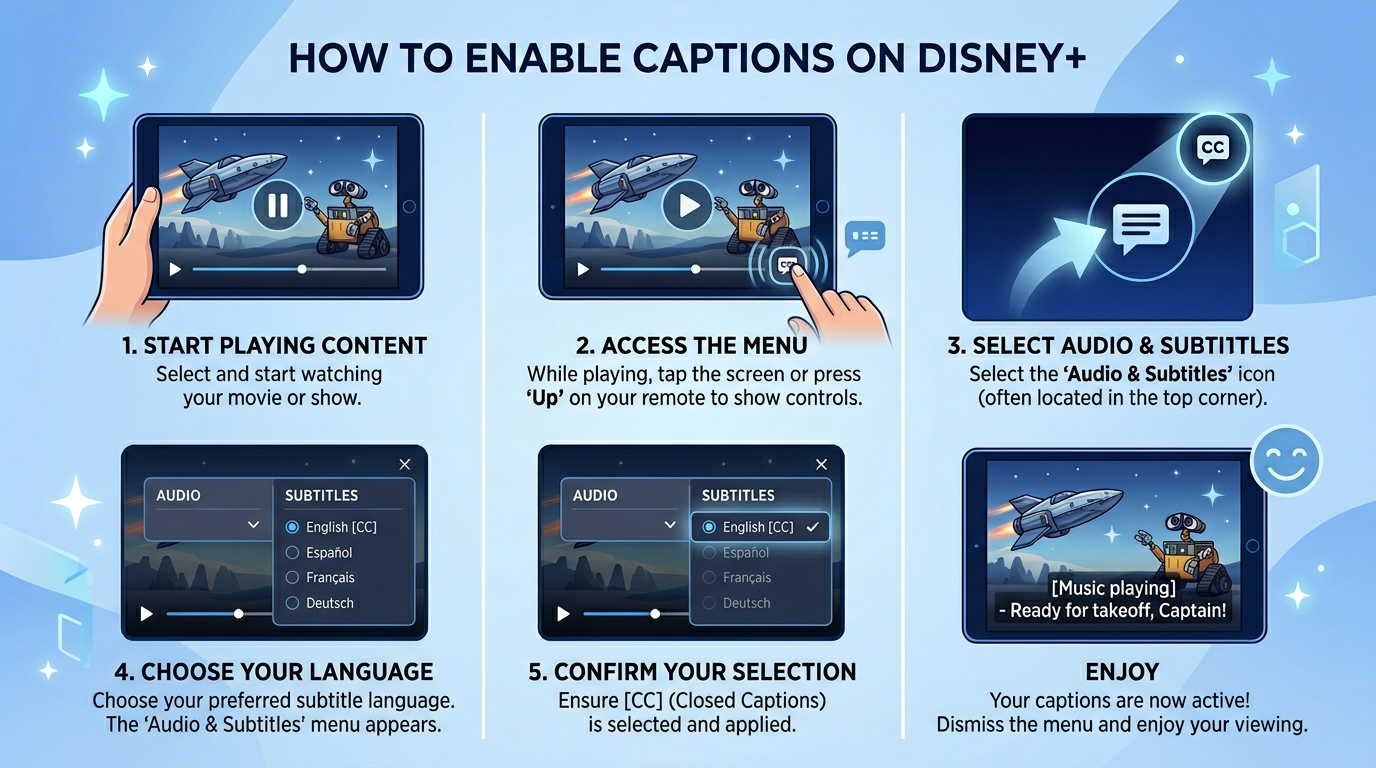
Open any movie or show → pause it → select the Audio & Subtitles (speech bubble icon) → choose your preferred language under Subtitles → press back to resume playback.
That’s it.
But if captions aren’t showing, won’t turn off, look too small, or need customization, don’t worry. In this complete guide, I’ll walk you through exactly how to turn on subtitles on Disney+ across every device — from smart TVs to iPhones — plus how to fix common caption problems, adjust font size, change language, and optimize your viewing experience.
Let’s make your next Disney night perfectly readable. ✨
What Are Captions on Disney Plus?
Captions (also called subtitles or closed captions) are on-screen text versions of dialogue and sometimes sound effects. On Disney Plus, they help viewers:
- Understand dialogue clearly
- Follow along in noisy environments
- Watch content in another language
- Support accessibility for deaf or hard-of-hearing users
- Enjoy quiet late-night binge sessions
Disney+ offers multiple subtitle languages and accessibility options depending on the title and region.
How to Put Captions on Disney Plus (General Method)
No matter what device you’re using, the process is similar.
Basic Steps:
- Start playing a movie or series on Disney+
- Pause the video
- Select the Audio & Subtitles icon (usually a speech bubble)
- Under Subtitles, choose your preferred language
- Press back or resume playback
Your captions will now appear on screen.
Now let’s break it down by device.
How to Put Captions on Disney Plus on Smart TV
Smart TVs (Samsung, LG, Sony, etc.) make subtitle access easy.
Steps:
- Open Disney+ on your Smart TV
- Play any movie or show
- Press your remote’s Up or Down button
- Select the speech bubble icon
- Choose a subtitle language
- Resume playback
If captions don’t appear, check your TV’s system accessibility settings, as some TVs override app settings.
How to Turn On Subtitles on Disney Plus on iPhone or iPad
Watching Disney+ on your iPhone? Here’s how to add captions:
Steps:
- Open Disney+ app
- Play a show or movie
- Tap the screen once
- Tap the Audio & Subtitles icon (top right corner)
- Select your subtitle language
- Tap back
Captions will immediately display.
💡 You can also customize subtitle appearance under:
Settings → Accessibility → Subtitles & Captioning → Style
How to Put Captions on Disney Plus on Android
Android devices follow nearly identical steps.
Steps:
- Open Disney+
- Play your content
- Tap the screen
- Tap the speech bubble icon
- Choose subtitle language
- Resume
You can also adjust caption styling under:
Settings → Accessibility → Caption preferences
How to Put Captions on Disney Plus on Roku
Method 1 (Inside Disney+):
- Play content
- Press the Star (*) button on your Roku remote
- Select Closed Captioning
- Choose On
Method 2 (System Settings):
Go to:
Settings → Accessibility → Captions mode → On Always
How to Turn On Disney Plus Subtitles on Firestick
Steps:
- Start playing content
- Press the Menu (three lines) button
- Select Subtitles
- Choose language
Or enable globally via:
Settings → Accessibility → Closed Caption
How to Enable Subtitles on Disney Plus on PlayStation & Xbox
Steps:
- Open Disney+
- Play your show
- Press Down on controller
- Select Audio & Subtitles
- Choose language
How to Turn Off Captions on Disney Plus
If captions won’t go away:
- Pause playback
- Open Audio & Subtitles
- Select Off under Subtitles
If still visible, check device-level accessibility settings.
How to Change Caption Language on Disney Plus
Disney+ supports multiple languages depending on the title and region.
To switch:
- Open Audio & Subtitles
- Choose desired language
- Resume
Common options include:
- English
- Spanish
- French
- German
- Japanese
- Hindi
- Arabic
Availability varies by country.
How to Customize Caption Size, Font & Color
Disney+ uses device-level caption styling in most cases.
On iPhone:
Settings → Accessibility → Subtitles & Captioning → Style
On Android:
Settings → Accessibility → Caption preferences
On Smart TV:
Accessibility → Caption Settings
You can change:
- Font size
- Text color
- Background opacity
- Bold style
This is helpful if captions appear too small.
Why Are Subtitles Not Working on Disney Plus?
Common reasons include:
1. App Glitch
Fix: Restart app or device.
2. Outdated App
Fix: Update Disney+ from app store.
3. Internet Lag
Fix: Restart router.
4. Regional Restrictions
Some titles don’t offer certain languages.
How to Fix Disney Plus Captions Out of Sync
If subtitles are delayed or early:
- Exit and reopen video
- Restart device
- Check internet connection
- Clear app cache (Android)
- Reinstall app if necessary
Persistent syncing issues may indicate streaming instability.
How to Download Disney Plus Shows with Subtitles
Want captions offline?
- Download show
- Before playback, select subtitle language
- Play offline
Make sure subtitle language was selected before download.
Are Disney Plus Subtitles Accurate?
Most Disney+ captions are professionally created and highly accurate. However:
- Some live-action shows may vary
- Sound effects may not always appear
- Foreign dubs may have simplified captions
Disney continues improving accessibility standards.
Does Disney Plus Have Closed Captions for All Titles?
Nearly all content includes English captions. However:
- Language availability depends on region
- Older titles may have limited subtitle options
Always check Audio & Subtitles before starting.
How to Put Captions on Disney Plus in Different Countries
Language options vary by location.
For example:
- US: English, Spanish
- India: Hindi, Tamil, Telugu
- Europe: Multiple European languages
If you don’t see your language, it may not be supported in your region.
Disney Plus Subtitle Accessibility Features
Disney+ supports:
- Closed captions
- SDH (Subtitles for Deaf & Hard of Hearing)
- Audio descriptions
- Multiple languages
Accessibility is a core platform feature.
Tips for Better Disney+ Viewing with Captions
- Use high-speed internet
- Adjust font size for comfort
- Enable dark background for readability
- Keep app updated
- Check subtitle language before starting long films
Frequently Asked Questions (FAQ)
1. How do I turn on captions on Disney Plus?
Pause video → Select Audio & Subtitles → Choose language → Resume.
2. Why can’t I find subtitles on Disney Plus?
Some titles have limited language options. Check region availability.
3. How do I turn off Disney Plus subtitles?
Select Audio & Subtitles → Choose Off.
4. Can I customize Disney Plus captions?
Yes, via device accessibility settings.
5. Why are Disney Plus captions not syncing?
Restart video, update app, or check internet.
6. Does Disney Plus have subtitles in multiple languages?
Yes, depending on region and title.
7. How do I fix subtitles not showing?
Restart app, update, or check accessibility settings.
8. Can I download shows with subtitles?
Yes, select subtitle language before downloading.
Final Thoughts: Enjoy Disney+ Your Way
Now you know exactly how to put captions on Disney Plus, no matter what device you’re using.
Whether you need subtitles for accessibility, language learning, or just late-night quiet streaming, Disney+ makes it simple.
If captions aren’t working, a quick settings check or app update usually fixes everything.
Streaming should feel magical — not frustrating. ✨
Now grab your popcorn and press play.

A creative caption writer from California who specializes in romantic and lifestyle Instagram captions.