
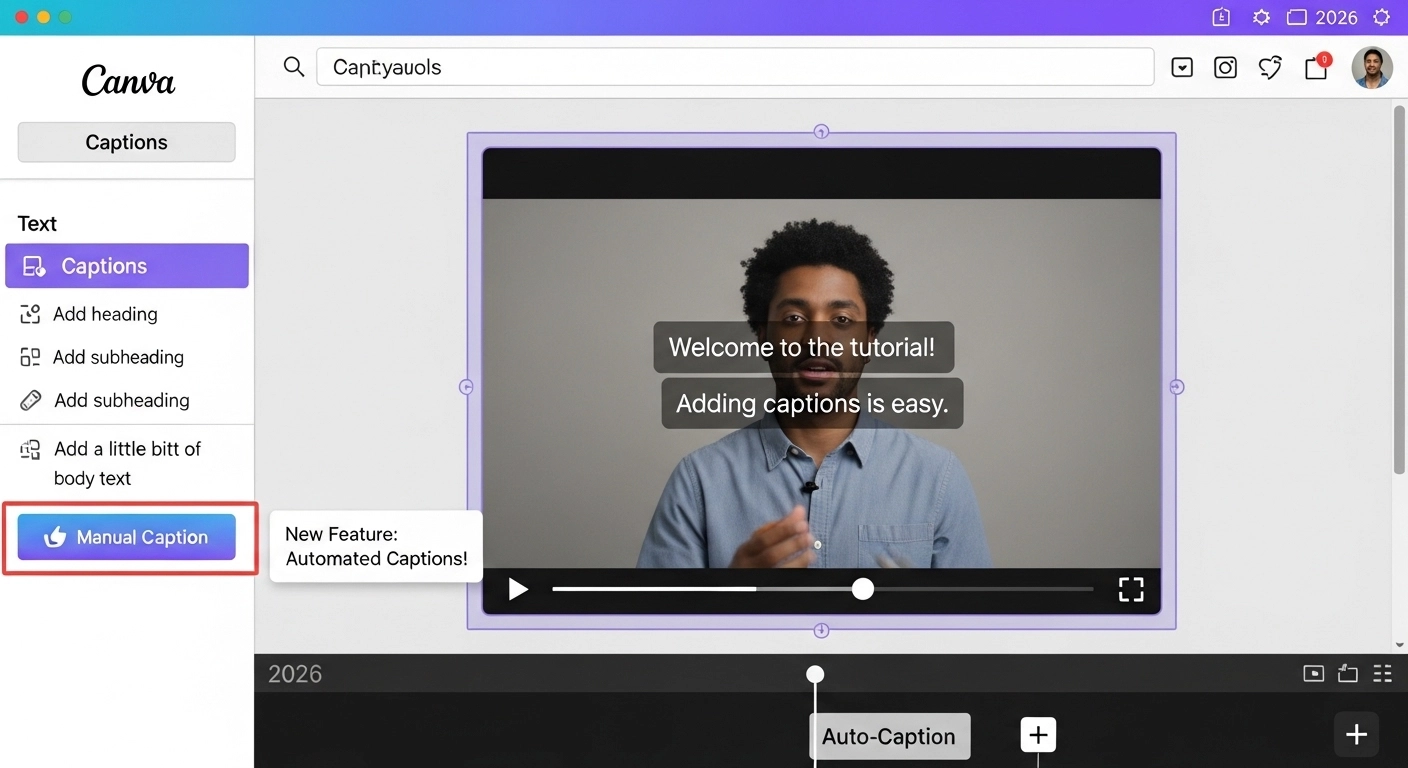
How to add captions in Canva means placing readable text on your graphic or video project that describes actions, adds context, and enhances accessibility and engagement.
In Canva, captions can be added manually, automatically generated, styled with text tools, synchronized with audio, and formatted for social platforms like Instagram, TikTok, and YouTube — all in just a few clicks.
Whether you’re creating Instagram reels, YouTube shorts, testimonial videos, or slideshows, mastering captions in Canva transforms your visuals into eye‑catching, inclusive content that keeps users watching, sharing, and saving.
🛠️ What Are Captions and Why They Matter in Canva
Captions are more than annotations — they’re story magnets.
On social media, 70–85% of videos are watched without sound. Captions:
-
Boost watch time and retention 👍
-
Make content accessible to deaf or hard‑of‑hearing audiences ♿
-
Improve SEO and video searchability 🔍
-
Reinforce key messages and CTAs 💬
-
Create emotional connection ❤️
Captions are now a must‑have, not a nice‑to‑have.
📍 How to Add Captions in Canva (Step‑by‑Step)
Step 1 — Open Your Canva Project
→ Select your design (video or graphic).
Step 2 — Add Text
-
Click Text on the left panel
-
Choose a style (Heading, Subheading, Body)
-
Click to add it to your canvas
Step 3 — Type Your Caption
→ Write dialogue, audio transcript, or message you want viewers to see.
Step 4 — Style Your Caption
✔ Font family
✔ Size
✔ Color
✔ Shadow or outline for visibility
Step 5 — Place Caption
→ Drag to where it’s easiest to read (bottom third often works best).
Step 6 — Time It (for videos)
→ Use the timeline bar → drag caption duration
→ Sync with spoken words
That’s it! You just learned how to add captions in Canva in the easiest way.
🎤 How to Automatically Generate Captions in Canva (Video)
-
Upload your video
-
Click More → Captions
-
Choose Auto‑Generate
-
Select your language
-
Edit as needed
✔ Auto captions reduce manual typing
✔ Great for long videos
✔ Saves serious time
Tip: Always proofread — auto transcription isn’t perfect.
✏️ Editing Captions in Canva
Editing captions is key to clarity and engagement. You can:
✔ Fix typos
✔ Break long lines into readable chunks
✔ Add emphasis (bold, color)
✔ Add emojis for emotion 😊
Pro Tip: shorter lines = easier reading.
🎥 How to Sync Captions With Audio
-
Click caption block on timeline
-
Drag edges to adjust timing
-
Play and preview
-
Repeat for each caption segment
This gives your audience a smooth reading experience that matches your voice or music.
💡 Best Fonts & Sizes for Captions in Canva
| Style | Use Cases | Suggested Size |
| Bold Sans | Reels & Shorts | 32‑48pt |
| Clear Serif | Tutorials | 24‑36pt |
| Script Accent | Quotes | 28‑42pt |
| High Contrast | Bright BG | +2pt |
Keep legibility top priority — your captions should be instantly readable.
🖌️ Styling Your Captions for Maximum Engagement
Imagine scrolling with sound off — your caption is your performer.
To boost readability:
✔ Add drop shadows
✔ Use contrasting colors
✔ Outline text for busy backgrounds
✔ Use semi‑opaque text boxes
✔ Add emoji accents 🎯
📱 Platform‑Specific Caption Tips
Instagram Reels
✔ Bottom placed
✔ Big & bold
✔ Color‑pop emojis 🎉
TikTok
✔ Match tone to trend
✔ Use captions to echo audio cues
YouTube
✔ Accurate transcriptions
✔ Long paragraphs for narration
Each platform has its own vibe — tailor your captions accordingly.
💬 50 Ready‑to‑Use Caption Examples (Copy‑Ready)
These work for videos and graphics — feel free to customize ✨
Short & Sweet
-
“Watch till the end 🎬”
-
“Hold up! This is the part 😍”
-
“Can you relate? 🤔”
-
“Best moment yet 😭”
-
“OMG yes! 😆”
Relatable
-
“Me trying to adult 💁♀️”
-
“Story of my life 😅”
-
“Every. Single. Time 📌”
-
“Why is this so true? 😂”
-
“Just vibes ✨”
Emotional
-
“This hit different ❤️”
-
“Tears for real 😢”
-
“Heart full 💖”
-
“Forever mood 💫”
-
“You make me smile 😊”
Funny & Playful
-
“Insert dramatic music 🎶”
-
“Yes queen 👑”
-
“Can’t stop laughing 🤣”
-
“Oopsie 🙃”
-
“Plot twist! 😜”
Motivational
-
“Keep going 💪”
-
“You’ve got this ✨”
-
“New day, new goals 🌅”
-
“Rise & sparkle 🌟”
-
“Dream big 🌙”
Seasonal
-
“Summer feels ☀️”
-
“Fall nights 🍁”
-
“Winter cozies ❄️”
-
“Spring bloom 🌸”
-
“Holiday cheer 🎄”
Call‑to‑Action
-
“Tag a friend 👇”
-
“Save for later 💾”
-
“Comment your mood 🗯️”
-
“Screenshot this 📸”
-
“Share the love ❤️”
Trendy & Viral
-
“POV: you get it 😂”
-
“This is the energy 🔥”
-
“Can we get a round? 🥳”
-
“Wait for it… 👀”
-
“We stan 🫶”
Inclusive & Respectful
-
“Accessibility matters ♿”
-
“Your voice counts ✊”
-
“Spread kindness 🤍”
-
“Be here now 🌼”
-
“Celebrate you 🎉”
Platform Focused
-
“Instagram approved 💅”
-
“TikTok trend alert 🚨”
-
“Best for YouTube 🎥”
-
“Snapchat moments 📱”
-
“Pinterest inspo ✨”
🧠 Emotional Psychology Behind Great Captions
Captions aren’t just text — they’re emotional triggers. People scroll fast — but captivated minds stop. Great captions:
✔ Connect with shared experience
✔ Evoke laughter or nostalgia
✔ Build curiosity
✔ Trigger reaction comments
✔ Invite sharing
The more relatable and human your captions, the higher your engagement will be.
📊 Engagement Strategies Using Captions
1. Ask a question 🤔
→ “What’s your take?”
2. Create urgency ⏰
→ “Watch before it drops!”
3. Leverage bromance/romance vibes
→ “Tag your ride or die ❤️”
4. Use emojis to convey tone
— they’re emotional shortcuts
5. Sync captions with rhythm
→ rhythmic captions feel satisfying
Your captions should invite reaction.
❌ Common Mistakes When Adding Captions in Canva
Avoid these traps:
🚫 Too many words
🚫 Tiny fonts
🚫 Poor contrast
🚫 Ignoring audio sync
🚫 No proofreading
Fix these and your captions instantly look and perform better.
⏱️ How Long Should Captions Stay On Screen?
For videos:
✔ 2–4 second minimum per caption
✔ Longer for reading speed
✔ Adjust based on audience
Rule of thumb: if someone has to pause, it’s too fast.
🧩 Accessibility & Caption Best Practices
Good captions help everyone:
✔ Include speaker labels
✔ Add sound cues (like “[laughs]”)
✔ Sync timing accurately
✔ Use simple language
Accessibility means more viewers AND more love.
🏷️ Best Hashtags for Canva Captions & Videos
Use combos like:
📌 #CanvaTips
📌 #VideoCaptions
📌 #ContentCreator
📌 #SocialMediaTools
📌 #AccessibilityMatters
📌 #EngagementBoost
📌 #SmallBizMarketing
📌 #InstagramGrowth
Hashtags amplify reach beyond your audience.
📌 Caption Writing Formula (Framework)
Use this easy structure:
🎯 Who? (your audience)
💡 What? (the core message)
❤️ Why it matters?
👉 Call to action
Example:
➡ “Hey creators 👋, watch this quick Canva trick to add insta‑ready captions 😍 — tag a friend who needs this!”
📣 Frequently Asked Questions (FAQ)
Q1. Can Canva auto‑generate captions?
Yes — for videos with audio, Canva can auto‑transcribe and place captions. Edit after generation for accuracy.
Q2. Are Canva captions editable?
Absolutely — you can adjust text, style, placement, and timing.
Q3. Can captions be exported with video?
Yes — when you download your video, captions are baked into the visuals.
Q4. Can I add emojis in captions?
Yes! Emojis boost emotion and grab attention.
Q5. Are Canva captions permanent?
They remain editable in Canva — but once downloaded, they are part of the video file.
Q6. Is adding captions worth it?
Yes — they increase accessibility, watch time, and engagement.
Q7. How do I sync captions with sound?
Use the timeline editor and drag caption blocks to match audio cues.
Q8. What font is best for captions?
Bold, clear sans serif fonts with high contrast are best for readability.
🧠 Final Thoughts — Why You Should Master Adding Captions in Canva
Learning how to add captions in Canva is a game changer. It elevates your content from scroll‑past to stop‑and‑watch. Accessibility, emotion, clarity — captions amplify every story you tell.
Whether you’re a seasoned creator or just starting out, these tips and ready‑made captions will help you create content that’s beautiful, inclusive, and irresistible.
So go ahead — try it, edit it, and make your words pop on the screen. And don’t forget: your voice matters — captions make sure everyone hears it. 🔊❤️

A digital writer who crafts motivational and success-driven captions for entrepreneurs.