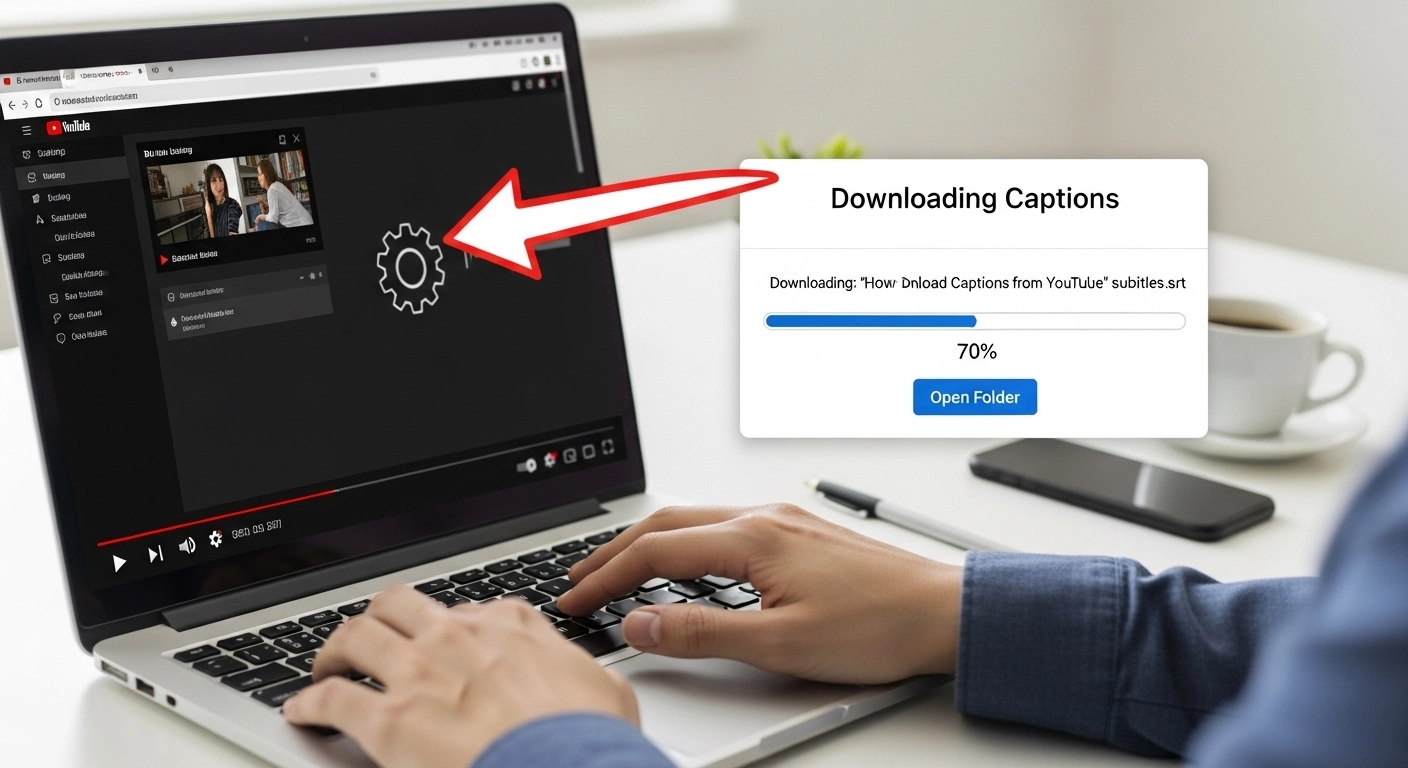
YouTube captions, also known as subtitles, are not just handy for accessibility — they’re essential for content creators, social media marketers, and anyone who wants to repurpose video content.
“How to download captions from YouTube” refers to the process of extracting these subtitles from YouTube videos so you can save, edit, or translate them.
Whether you’re creating multilingual content, transcribing videos, or curating quotes, having access to captions opens a world of possibilities.
In this guide, we’ll cover every method, tool, tip, and trick to download captions from YouTube safely, efficiently, and with minimal technical effort.
By the end, you’ll know exactly how to grab subtitles in multiple formats, customize them, and use them for your content strategy.
Understanding YouTube Captions
Before downloading, it’s important to understand the types of captions on YouTube:
-
Automatic Captions (Auto-generated) 🤖 – Generated by YouTube’s AI; accuracy varies.
-
Manual Captions ✍️ – Uploaded by creators; usually more accurate.
-
Community Captions 🌐 – Optional, contributed by viewers.
-
Closed Captions (CC) 📺 – Can be toggled on/off.
-
Open Captions 🔓 – Always visible, embedded into the video.
Why this matters: Your method for downloading captions may differ based on the type of subtitles the video has.
Why Download YouTube Captions?
Downloading captions is useful for:
-
Creating transcripts for blogs 📝
-
Repurposing quotes for social media 💬
-
Making content accessible for hearing-impaired viewers ❤️
-
Translating videos into other languages 🌎
-
Improving SEO with accurate text content 🔍
-
Editing subtitles for your own video projects 🎬
-
Saving content for offline learning 📚
-
Crafting voiceovers or narration scripts 🎙️
-
Extracting highlights for presentations 📊
-
Creating subtitles for embedded videos on websites 🌐
-
Analyzing video content for research purposes 🔬
-
Building video content libraries for educational purposes 🎓
-
Supporting language learning tools 🗣️
-
Ensuring legal compliance in accessibility requirements ✅
-
Tracking dialogue for media projects 🎥
-
Repurposing interviews or podcasts as written content 🎧
-
Generating AI-ready text for content automation 🤖
-
Improving comprehension for complex tutorials 🧩
-
Creating karaoke or lyric-style videos 🎶
-
Personal archiving of favorite videos ❤️
Method 1 – Using YouTube’s Built-in Tools
YouTube allows creators to download their own captions:
-
Log into YouTube Studio 🎥
-
Go to Subtitles in the left menu
-
Select the video you want captions for
-
Click the three dots beside the caption track
-
Choose Download → options: .srt or .txt
Pros: Official, accurate, easy for your own videos
Cons: Cannot download captions from other creators’ videos
Method 2 – Using Online YouTube Caption Downloaders
Several websites allow caption downloads without software:
-
DownSub.com 🌐 – Paste the URL → select language → download .srt/.txt
-
SaveSubs.com 💾 – Supports multiple formats
-
Y2Mate Subtitles Tool 🎬 – Fast download with auto-detection
-
DIYCaptions.com ✨ – Works for auto-generated captions
-
LilSubs 🧾 – Free, no registration
Tips for online tools:
-
Use a trusted website ✅
-
Avoid suspicious ads ⚠️
-
Check auto-caption accuracy 📝
Method 3 – Using Browser Extensions
Browser extensions streamline the process:
-
Subtitles For YouTube (Chrome) 🖱️ – Download subtitles in multiple languages
-
Video DownloadHelper (Firefox/Chrome) 🔗 – Handles videos and captions
-
YouTube Caption Downloader 📝 – Simple, lightweight
-
Tampermonkey Scripts 📜 – Custom scripts to extract .srt files
-
Enhancer for YouTube™ 🎛️ – Built-in subtitle download
Pro Tip: Always read extension reviews and permissions before installing.
Method 4 – Using VLC Media Player
VLC can extract captions if you download the video first:
-
Download the YouTube video (e.g., via 4K Video Downloader) 🎥
-
Open the video in VLC Media Player
-
Go to Subtitle → Add Subtitle File or Extract Subtitles
-
Save as .srt or .txt
Why use VLC: Works offline, high control, supports multiple formats.
Method 5 – Using 4K Video Downloader
A popular desktop tool for captions:
-
Install 4K Video Downloader 💻
-
Copy the YouTube URL
-
Click Paste Link → select Download Subtitles
-
Choose Format: .srt or .txt
-
Download your video and captions
Tips:
-
Works with multiple videos in a playlist
-
Allows selection of subtitle language
-
Great for batch downloads
Method 6 – Using Python Scripts
For advanced users:
from youtube_transcript_api import YouTubeTranscriptApi
video_id = “YOUR_VIDEO_ID”
transcript = YouTubeTranscriptApi.get_transcript(video_id)
with open(“captions.txt”, “w”, encoding=”utf-8″) as f:
for entry in transcript:
f.write(f”{entry[‘start’]} –> {entry[‘start’] + entry[‘duration’]}\n”)
f.write(f”{entry[‘text’]}\n\n”)
Pros: Full automation, flexible, multiple videos at once
Cons: Requires Python knowledge 🐍
File Formats for Downloaded Captions
Understanding formats is key:
-
.srt (SubRip) 📝 – Standard, compatible with most players
-
.txt 📄 – Simple, editable plain text
-
.vtt (WebVTT) 🌐 – Web-friendly, supports styling
-
.sbv (YouTube) 💻 – Legacy format
-
.xml / .dfxp 🖥️ – Professional broadcasting
Pro Tip: Choose the format based on your use case — editing, embedding, or repurposing.
How to Convert Captions
Sometimes you need a different format:
-
Online Converters 🌐 – e.g., Subtitle Converter, Convertio
-
VLC Player 🎬 – Import and save as another format
-
Subtitle Edit Software 🖥️ – Batch convert multiple files
-
Aegisub 📝 – Advanced subtitle editor
-
FFmpeg Command Line 💻 – For video professionals
Editing Captions for Accuracy
-
Auto-captions often contain errors 🛠️
-
Use Subtitle Edit or Aegisub
-
Check spelling, punctuation, and speaker identification ✍️
-
Keep sentences short for readability 📏
-
Sync captions with video timestamps ⏱️
Pro Tip: Accurate captions improve engagement, comprehension, and accessibility.
Translating Captions
-
Use Google Translate for quick translation 🌍
-
Use Amara.org for collaborative translation 👩💻
-
Some downloaders allow direct multi-language download 🌐
-
Preserve context and idioms for better readability 💡
-
Review translations before publishing ✅
YouTube Caption SEO Benefits
Captions aren’t just accessibility tools:
-
Improve YouTube SEO with keywords 🔍
-
Make content searchable by Google and YouTube 🧲
-
Enhance engagement with readable subtitles ❤️
-
Increase watch time for viewers who prefer reading ⏱️
-
Enable content repurposing for blogs or social media 📖
Common Mistakes to Avoid
-
Downloading copyrighted captions without permission ❌
-
Ignoring auto-caption errors ⚠️
-
Using untrusted online tools with malware 🦠
-
Not syncing captions properly ⏰
-
Overlooking formatting for social media posts 📏
-
Forgetting multiple languages for global reach 🌎
-
Relying only on automatic translations 🛑
-
Neglecting accessibility standards ♿
-
Using unsupported file formats 🚫
-
Forgetting to backup subtitle files 💾
Best Practices for Captions
-
Keep sentences concise 📝
-
Sync captions with speech ⏱️
-
Use readable font sizes when embedding 📐
-
Add speaker labels for clarity 👥
-
Translate captions for global audience 🌍
-
Use standard file formats for compatibility ✅
-
Review before publishing 👀
-
Incorporate keywords for SEO 🔑
-
Maintain punctuation and grammar 🖊️
-
Use professional software when needed 🎬
Engagement Strategy with Captions
-
Highlight quotes from captions on Instagram 🖤
-
Create video snippets with captions for TikTok 🎥
-
Encourage viewers to comment on transcript highlights 💬
-
Use captions for storytelling in blog posts 📝
-
Create visually appealing graphics with caption text 🎨
-
Share translated captions for international reach 🌐
-
Build interactive quizzes using transcript content 🧠
-
Repurpose captions for social media threads 🧵
-
Include CTAs in video captions to boost engagement 🚀
-
Monitor engagement analytics to optimize content 📊
Hashtags to Maximize Reach
-
#YouTubeCaptions 🎥
-
#Subtitles 💬
-
#VideoAccessibility ♿
-
#Transcription 📝
-
#ContentRepurposing 🔁
-
#VideoMarketing 📈
-
#SocialMediaTips 💡
-
#YouTubeSEO 🔍
-
#MultiLanguageContent 🌎
-
#CaptionDownload 💻
FAQs About Downloading YouTube Captions
Q1: Can I download captions from any YouTube video?
A: Only if the video has captions enabled. Auto-generated captions are usually downloadable.
Q2: Are downloaded captions legal to use?
A: Use captions for personal or educational purposes. For commercial use, check copyright.
Q3: Which format is best for editing captions?
A: .srt or .vtt are widely supported and easy to edit.
Q4: Can I download captions in different languages?
A: Yes, if the video has multiple subtitle tracks.
Q5: Do captions include timestamps?
A: .srt and .vtt include timestamps; .txt is plain text only.
Q6: How accurate are auto-generated captions?
A: Accuracy varies by audio quality, accents, and speech clarity. Manual captions are more reliable.
Q7: Can I batch download captions from multiple videos?
A: Yes, using desktop tools like 4K Video Downloader or Python scripts.
Q8: Do mobile devices allow downloading captions?
A: Limited. Desktop tools or online downloaders are recommended.
Q9: Can captions help SEO?
A: Absolutely — search engines index subtitles, boosting video discoverability.
Q10: How do I fix misaligned captions?
A: Use subtitle editors like Subtitle Edit or Aegisub to sync accurately.
Conclusion
Downloading captions from YouTube is no longer a technical challenge — it’s a strategic content tool.
From repurposing quotes to boosting accessibility and SEO, captions enhance engagement and extend your content’s reach.
By using official tools, trusted online downloaders, browser extensions, or professional software, you can extract captions in multiple formats and languages with ease.
Remember: accurate, well-edited captions increase comprehension, shareability, and discoverability.
So next time you watch a video, don’t just consume it — capture the words, repurpose them, and elevate your content strategy. 🎬❤️
Now go ahead, download those captions, and watch your content engagement soar! 🚀
A lifestyle blogger creating cute, trendy, and relatable captions for everyday posts.