
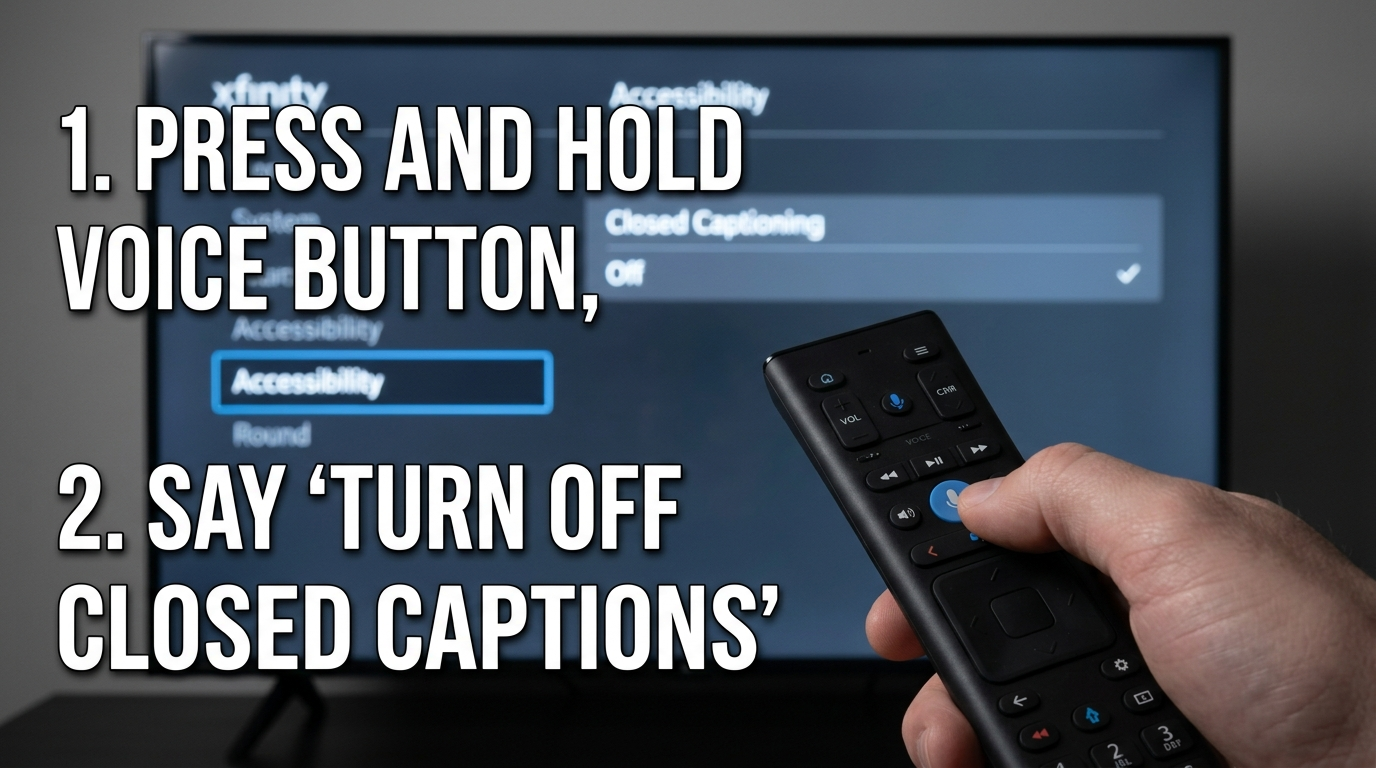
On most Comcast Xfinity remotes, press the “B” button or the “Info” button, navigate to Accessibility Settings, choose Closed Captioning, and toggle it Off.
You can also turn off captions through your TV’s own settings menu if they’re not controlled by the cable box.
Now let’s walk through every possible scenario — because sometimes those captions just won’t go quietly. 😉
This complete guide will show you exactly how to turn off closed captions on Comcast Xfinity, whether you’re using X1, Flex, a smart TV, the Stream app, or even troubleshooting captions that won’t disappear.
Save this guide for later 📌 — you never know when captions might randomly pop back on.
What Are Closed Captions on Comcast?
Closed captions are on-screen text that displays spoken dialogue, sound effects, and audio cues while watching TV. Comcast (Xfinity) offers built-in closed captioning features through:
-
X1 TV Boxes
-
Xfinity Flex
-
Xfinity Stream app
-
On-Demand programming
-
Live TV
Captions are designed for accessibility, but sometimes they get turned on accidentally — often by pressing the wrong remote button.
Why Closed Captions Turn On Automatically
Before we fix it, let’s talk about why this happens:
-
You accidentally pressed the “B” button (blue accessibility shortcut).
-
Your TV’s caption settings are enabled.
-
A streaming app turned captions on.
-
Your box reset after a power outage.
-
Accessibility settings were changed.
-
HDMI device override from your TV.
Understanding the source makes turning them off much easier.
How to Take Closed Caption Off Comcast X1 Box
This is the most common setup.
Method 1: Using the B Button (Fastest Way)
-
Press the “B” button on your Xfinity remote.
-
Accessibility Settings menu opens.
-
Select Closed Captioning.
-
Toggle to Off.
-
Exit the menu.
Done in seconds.
Method 2: Through Device Settings
-
Press the Xfinity button.
-
Navigate to Settings (gear icon).
-
Select Device Settings.
-
Choose Accessibility.
-
Select Closed Captioning.
-
Turn it Off.
This method works even if the shortcut button doesn’t respond.
How to Take Closed Caption Off Comcast Flex
Using Xfinity Flex?
-
Press the Home button.
-
Go to Settings.
-
Select Accessibility.
-
Click Closed Captioning.
-
Toggle Off.
If you’re watching a specific streaming app (like Netflix), captions may need to be turned off inside the app itself.
How to Turn Off Closed Caption on Comcast Using the Voice Remote
Yes, you can literally tell it what to do.
Try saying:
“Turn off closed captions.”
Or
“Closed captions off.”
The Xfinity Voice Remote will disable them instantly.
If voice commands don’t work, make sure your remote microphone button is functioning.
How to Take Closed Caption Off Comcast Stream App
Watching on your phone, tablet, or laptop?
On Mobile App:
-
Start playing a show.
-
Tap the screen.
-
Tap the speech bubble icon.
-
Select Off under captions.
On Browser:
-
Hover over the video.
-
Click the CC icon.
-
Choose Off.
Captions in apps operate independently from your cable box.
How to Turn Off Closed Caption on Your TV (If Comcast Settings Don’t Work)
Sometimes the TV — not Comcast — is controlling captions.
On Most Smart TVs:
-
Press the Menu button.
-
Go to Settings.
-
Select Accessibility.
-
Choose Closed Caption.
-
Set to Off.
Common brands:
-
Samsung
-
LG
-
Sony
-
Vizio
-
TCL
If captions remain after disabling Comcast settings, your TV is likely the source.
Why Captions Won’t Turn Off (And How to Fix It)
If captions refuse to disappear, here’s what might be happening:
1. Dual Caption Conflict
Both your TV and Comcast box have captions enabled.
Fix: Turn them off in both places.
2. HDMI Device Override
Some TVs override cable box settings.
Fix: Turn off captions directly in TV accessibility.
3. App-Specific Captions
Netflix, Hulu, or Prime Video may have captions turned on separately.
Fix: Disable inside the streaming app.
4. Glitched Box
After power outages, settings sometimes reset.
Fix: Restart your X1 box.
How to Restart Comcast X1 Box
-
Press Xfinity button.
-
Go to Settings.
-
Select Device Settings.
-
Choose Power Preferences.
-
Click Restart.
Or unplug for 60 seconds.
Restarting solves many caption bugs.
How to Customize Captions Instead of Turning Them Off
Maybe you don’t want them gone — just prettier.
Comcast allows you to adjust:
-
Text size
-
Font style
-
Background color
-
Text color
-
Transparency
To customize:
-
Press B button.
-
Select Closed Captioning Options.
-
Adjust styling.
Sometimes simply adjusting makes captions less intrusive.
How to Take Closed Caption Off Comcast During On-Demand
On-Demand sometimes uses its own caption system.
While watching:
-
Press Info.
-
Navigate to Audio & Subtitles.
-
Turn captions Off.
On-Demand captions are separate from live TV settings.
How to Turn Off Closed Caption After a Comcast Update
Software updates may reset accessibility settings.
If captions reappear after an update:
-
Go to Accessibility Settings.
-
Confirm CC is off.
-
Restart the box.
Updates often re-enable default accessibility features.
How to Take Closed Caption Off Comcast for Kids Profiles
If using parental controls:
-
Access profile settings.
-
Check accessibility preferences.
-
Disable captions under the child profile.
Sometimes profiles store their own caption settings.
How to Turn Off Closed Caption on Comcast DVR Recordings
Captions can be embedded differently in recorded content.
While playing recording:
-
Press Info.
-
Go to Subtitles.
-
Select Off.
DVR captions may not match live settings.
How to Take Closed Caption Off Comcast Remote Without B Button
Older remotes may not have the blue B button.
Instead:
-
Press Menu.
-
Go to Setup.
-
Choose Closed Captioning.
-
Turn off.
If remote lacks options, use device settings from the main menu.
How to Fix Comcast Captions That Keep Turning Back On
If captions turn back on repeatedly:
-
Check TV caption settings.
-
Check streaming apps.
-
Reset box to factory settings.
-
Replace remote batteries.
-
Contact Xfinity support.
Persistent caption issues usually involve device conflicts.
When to Contact Comcast Support
Call support if:
-
Captions appear burned into screen permanently.
-
Menu settings are missing.
-
Box won’t respond to accessibility controls.
-
Captions appear on only one channel.
They may refresh your signal remotely.
Can You Disable Closed Captioning Permanently?
Yes — once disabled through Accessibility Settings, they remain off unless:
-
Software update resets them
-
Factory reset occurs
-
TV overrides settings
To prevent reactivation:
-
Disable on both TV and Comcast.
-
Avoid pressing the B button accidentally.
Quick Summary: Fastest Ways to Turn Off Comcast Captions
If you’re in a hurry:
✔ Press B button → Closed Caption → Off
✔ Use voice command: “Turn off closed captions”
✔ Check TV accessibility menu
✔ Restart box
That solves 95% of cases.
FAQ: How to Take Closed Caption Off Comcast
1. Why are captions on my Comcast TV?
Captions may have been enabled accidentally using the B button, through TV settings, or by a streaming app.
2. How do I turn off captions with the Xfinity Voice Remote?
Press the microphone button and say “Turn off closed captions.”
3. Why won’t my Comcast captions turn off?
Your TV settings or streaming app may be overriding the Comcast box.
4. Does restarting Comcast fix caption issues?
Yes. Restarting often resets accessibility glitches.
5. How do I turn off captions on Comcast On-Demand?
Press Info during playback and disable subtitles.
6. Can captions be disabled permanently?
Yes, but updates or resets may re-enable them.
7. Why do captions show only on certain channels?
Some networks transmit captions separately. Check channel-specific settings.
8. Is there a shortcut button to disable captions?
Yes — the blue B button on most Xfinity remotes.
9. How do I turn off captions on Xfinity Stream?
Use the speech bubble icon during playback and select Off.
10. Do smart TVs override Comcast caption settings?
Sometimes. Always check TV accessibility if captions persist.
Troubleshooting Checklist (Save This!)
Before calling support, check:
-
☐ Comcast box accessibility settings
-
☐ TV closed caption settings
-
☐ Streaming app subtitle settings
-
☐ Restarted cable box
-
☐ Replaced remote batteries
Most caption problems are device conflicts — not service issues.
Final Thoughts: Enjoy Caption-Free Viewing Again
Now you know exactly how to take closed caption off Comcast, whether you’re using X1, Flex, Stream, DVR, On-Demand, or a smart TV setup.
Closed captions are wonderful for accessibility — but when you don’t need them, they shouldn’t distract from movie night or your favorite show.
If this guide helped you:
-
Save it for later 📌
-
Share it with someone struggling with their remote
-
Bookmark it in case captions sneak back
Technology can be stubborn — but now you’re fully in control.
And next time those captions pop up unexpectedly? You’ll handle it in seconds.

A New York-based content creator known for witty, short, and viral social media captions.