
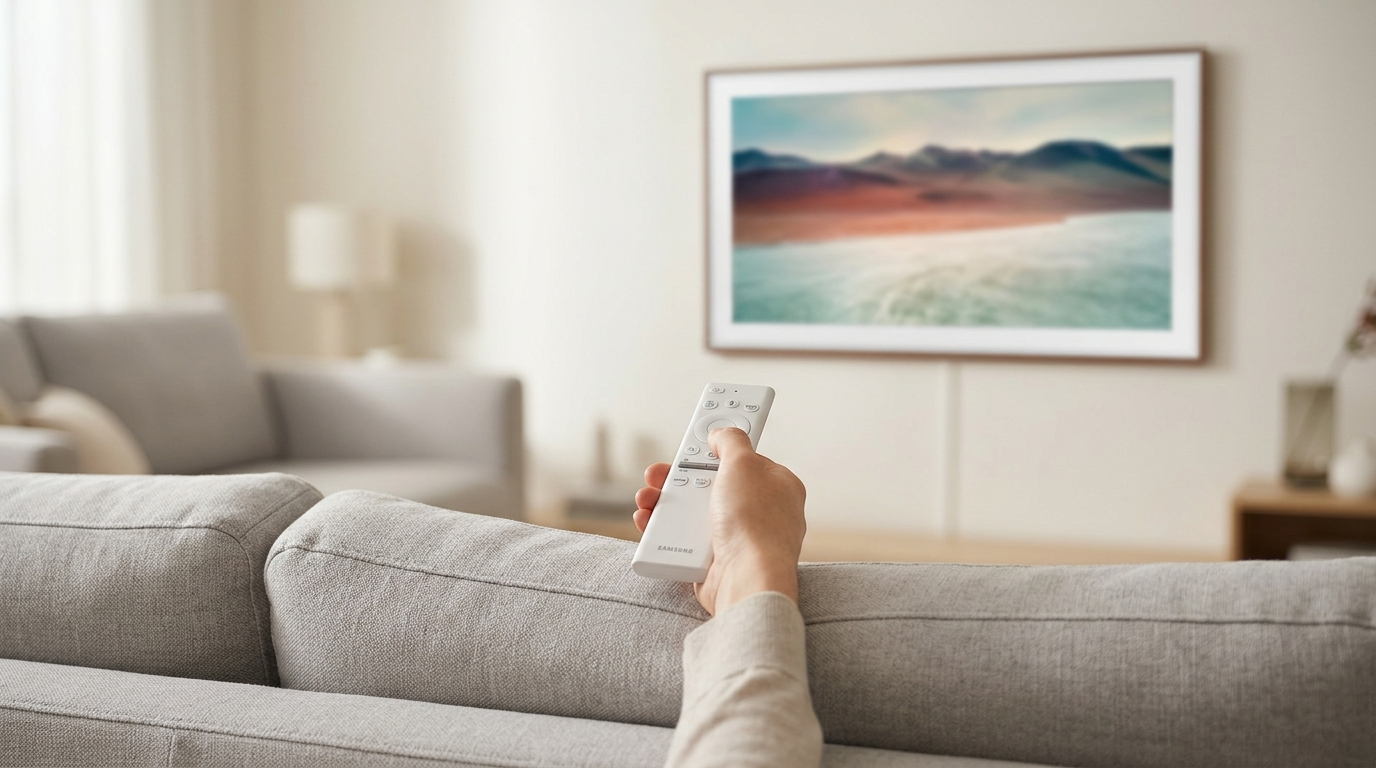
Go to your TV’s Settings, open Accessibility or Captions/Subtitles, and switch Closed Captioning (CC) to Off.
If captions still appear, check your cable box, streaming device, or app settings and disable subtitles there too.
That’s it in simple terms. 💡
But if you’ve tried that and those stubborn little words are still dancing across your screen… don’t worry.
I’ve got you.
This guide walks you step-by-step through turning off closed captions on Samsung, LG, Sony, Vizio, Roku, Fire TV, Apple TV, cable boxes, streaming apps, and more.
We’ll also cover why captions won’t turn off, how to fix stuck subtitles, and how to customize caption settings if you prefer them styled differently.
Let’s fix your TV and give your screen that clean, caption-free glow again. ✨
What Is Closed Captioning on TV?
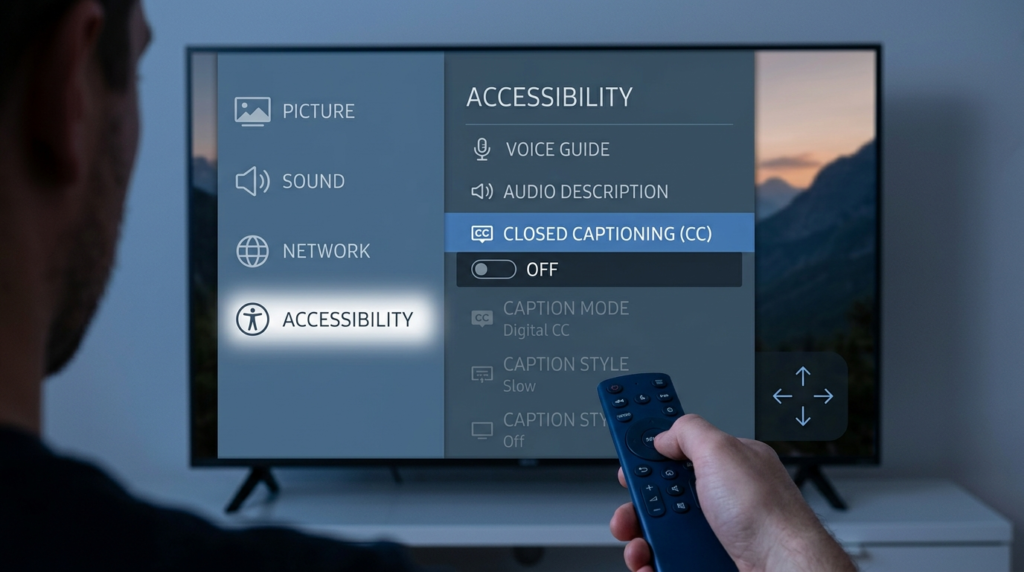
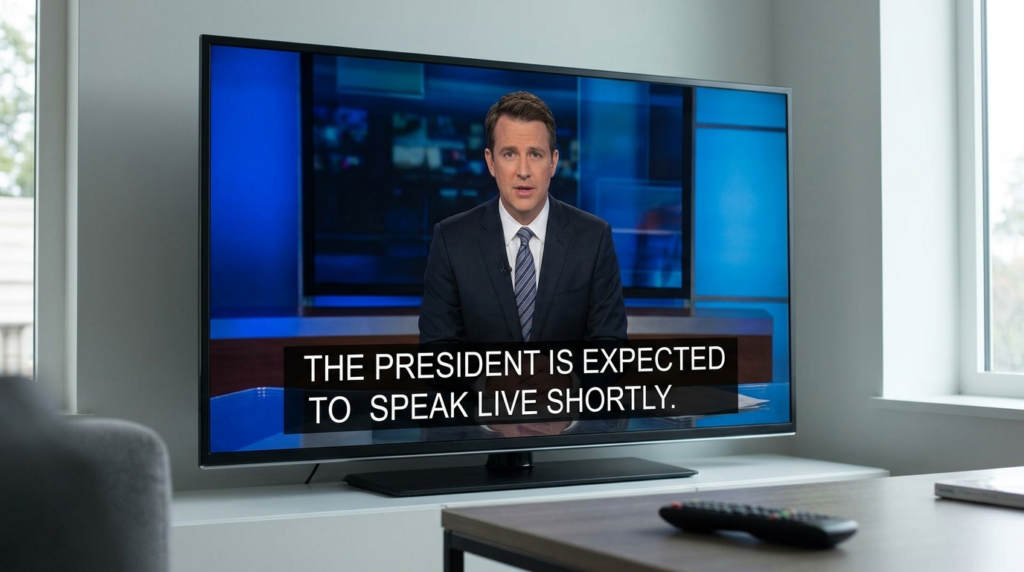
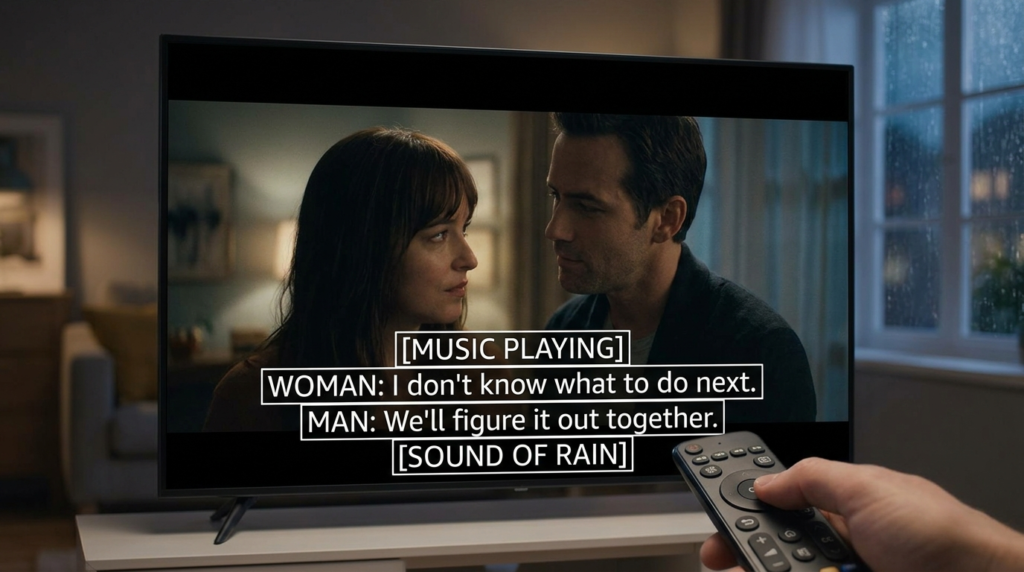
Closed captioning (CC) is a feature that displays text on your TV screen to show dialogue and sound effects. It’s designed for accessibility—especially for people who are deaf or hard of hearing—but it can also be helpful in noisy environments.
Closed captions differ slightly from subtitles:
-
Closed captions (CC) include dialogue + sound cues (e.g., [door slams]).
-
Subtitles usually show dialogue only.
If you want your screen text-free again, let’s walk through exactly how to remove closed captioning on TV for every major device.
How to Remove Closed Captioning on Samsung TV
Samsung TVs make it pretty simple.
Steps:
-
Press the Home button on your remote
-
Go to Settings
-
Select General
-
Choose Accessibility
-
Click Caption Settings
-
Turn Caption to Off
If captions are still on, check the app you’re using (like Netflix or YouTube) because sometimes subtitles are controlled inside the app itself.
💡 Tip: On newer Samsung models, you can also hold the Mute button for quick accessibility shortcuts.
How to Turn Off Closed Captioning on LG TV
LG uses slightly different wording.
Steps:
-
Press Settings on your remote
-
Select All Settings
-
Go to Accessibility
-
Choose Closed Caption
-
Toggle it Off
If you’re using WebOS apps (like Hulu or Prime Video), open the app’s playback menu and turn subtitles off there too.
How to Remove Closed Captioning on Sony TV
Sony TVs (especially Android or Google TV models) follow this path:
-
Press Home
-
Go to Settings
-
Select Device Preferences or Accessibility
-
Click Captions
-
Turn captions Off
If you’re watching cable, check the cable box settings as well.
How to Turn Off Closed Captioning on Vizio TV
Vizio keeps things pretty straightforward.
-
Press Menu
-
Go to Closed Captions
-
Select Off
On SmartCast models:
-
Press Menu
-
Select Accessibility
-
Turn captions off
If captions keep appearing, check your streaming device.
How to Remove Closed Captioning on Roku TV
Roku can control captions system-wide.
Method 1: From Settings
-
Press Home
-
Go to Settings
-
Select Accessibility
-
Choose Captions Mode
-
Select Off
Method 2: During Playback
-
Press the Star (*) button
-
Select Closed Captioning
-
Turn off
If captions are still on, check the specific app.
How to Turn Off Closed Captioning on Fire TV
Amazon Fire TV devices use this method:
-
Go to Settings
-
Select Accessibility
-
Click Closed Caption
-
Turn it Off
Or while watching a show:
-
Press the Menu button
-
Select Subtitles
-
Turn off
How to Remove Closed Captioning on Apple TV
Apple TV hides captions inside playback settings.
Steps:
-
While watching a show, swipe down (or press down on remote)
-
Select Subtitles
-
Choose Off
Or:
-
Go to Settings
-
Select Accessibility
-
Choose Subtitles & Captioning
-
Turn off Closed Captions + SDH
How to Turn Off Closed Captioning on Cable Box
Sometimes your TV isn’t the problem — your cable box is.
Common Fix:
-
Press Menu on cable remote
-
Go to Settings
-
Find Closed Captioning
-
Turn it Off
For Xfinity:
-
Press Xfinity button
-
Go to Settings
-
Choose Accessibility
-
Turn captions off
For DirecTV:
-
Press Menu
-
Select Settings & Help
-
Choose Closed Captioning
-
Turn off
Why Are Captions Still On After Turning Them Off?
If you’ve already turned off captions but they won’t disappear, here are common reasons:
1. The App Controls Subtitles Separately
Netflix, Hulu, Disney+, and YouTube all have internal subtitle settings.
2. Cable Box Override
Your cable box may override TV settings.
3. HDMI Device
A connected device (like Roku or Fire Stick) controls captions.
4. Accessibility Shortcut Enabled
Some remotes have shortcut buttons.
5. Firmware Glitch
Restart your TV and unplug for 60 seconds.
Sometimes the solution is simply restarting everything. Yes, the classic “turn it off and on again” really works. 💁♀️
How to Turn Off Subtitles on Netflix
-
Play a show
-
Select Audio & Subtitles
-
Choose Off
Netflix saves your preference for future viewing.
How to Remove Subtitles on YouTube
-
Click the CC button during playback
-
Turn it off
On Smart TVs:
-
Press Up
-
Select CC icon
-
Toggle off
How to Turn Off Closed Captioning Using Your Remote Shortcut
Many remotes have:
-
A CC button
-
A Subtitles button
-
A Star (*) button
-
A Settings or Gear icon
Check your remote carefully — sometimes it’s just one button away.
Difference Between Closed Captioning and Subtitles
Closed captions:
-
Include dialogue
-
Include sound effects
-
Used for accessibility
Subtitles:
-
Show dialogue only
-
Often used for translation
Knowing the difference helps you navigate your TV menu more confidently.
How to Customize Closed Caption Settings (Instead of Removing Them)
Maybe you don’t want to remove captions completely — just make them less distracting.
Most TVs allow you to:
-
Change text size
-
Adjust background color
-
Modify font style
-
Change transparency
-
Remove black box background
Look inside Accessibility > Caption Style.
Sometimes it’s not about removing captions — it’s about styling them better.
How to Restart Your TV to Fix Caption Glitches
If captions won’t disappear:
-
Turn off TV
-
Unplug from wall
-
Wait 60 seconds
-
Plug back in
-
Restart cable box or streaming device
This clears minor software bugs.
How to Perform a Factory Reset (Last Resort)
Only do this if captions won’t turn off no matter what.
-
Go to Settings
-
Select General
-
Choose Reset
-
Confirm
⚠️ This erases WiFi and account settings.
Troubleshooting Checklist: When Captions Won’t Turn Off
Before you panic, check:
-
TV settings
-
App settings
-
Cable box settings
-
Streaming device settings
-
Remote shortcut
-
Restart TV
-
Update software
Captions almost never “stick forever.” It’s usually layered settings.
Frequently Asked Questions (FAQ)
1. Why can’t I turn off closed captioning on my TV?
Because another device (like a cable box or streaming app) is controlling subtitles.
2. Is closed captioning the same as subtitles?
Not exactly. Closed captions include sound effects; subtitles usually show dialogue only.
3. Why do captions turn back on automatically?
Some apps save subtitle preferences per profile.
4. Where is caption settings located?
Usually under Settings > Accessibility > Captions.
5. Can I remove captions without the remote?
Sometimes using physical TV buttons — but it’s harder.
6. Why do captions only appear on one channel?
That channel may broadcast with captions embedded.
7. Do I need to update my TV software?
If settings don’t work, yes.
8. How do I turn off subtitles on HDMI input?
Check the connected device settings (Roku, Fire TV, etc.).
Final Thoughts: Getting Your Screen Back to Clean & Caption-Free ✨
Now you fully know how to remove closed captioning on TV, no matter what brand, device, or streaming service you’re using.
Most of the time, captions aren’t “stuck.”
They’re just controlled by a different layer — your app, cable box, or streaming stick.
Take a breath.
Go step by step.
Check every device connected to your TV.
And if all else fails? A quick restart fixes more than we like to admit. 😉
You deserve a distraction-free movie night.

A modern caption strategist focusing on aesthetic and mood-based Instagram captions.